Guide

Contents
Types of STALZONE game logs
STALZONE game on Steam platform can create the following types of log files:
- Files “client”;
- Files “watchdog”;
- Files “hs_err_pid”;
- Files “crashreports”;
- Files “translation_errors”.
Opening the STALZONE Folder in Steam
1. Launch the Steam app and log in to your account, if necessary.
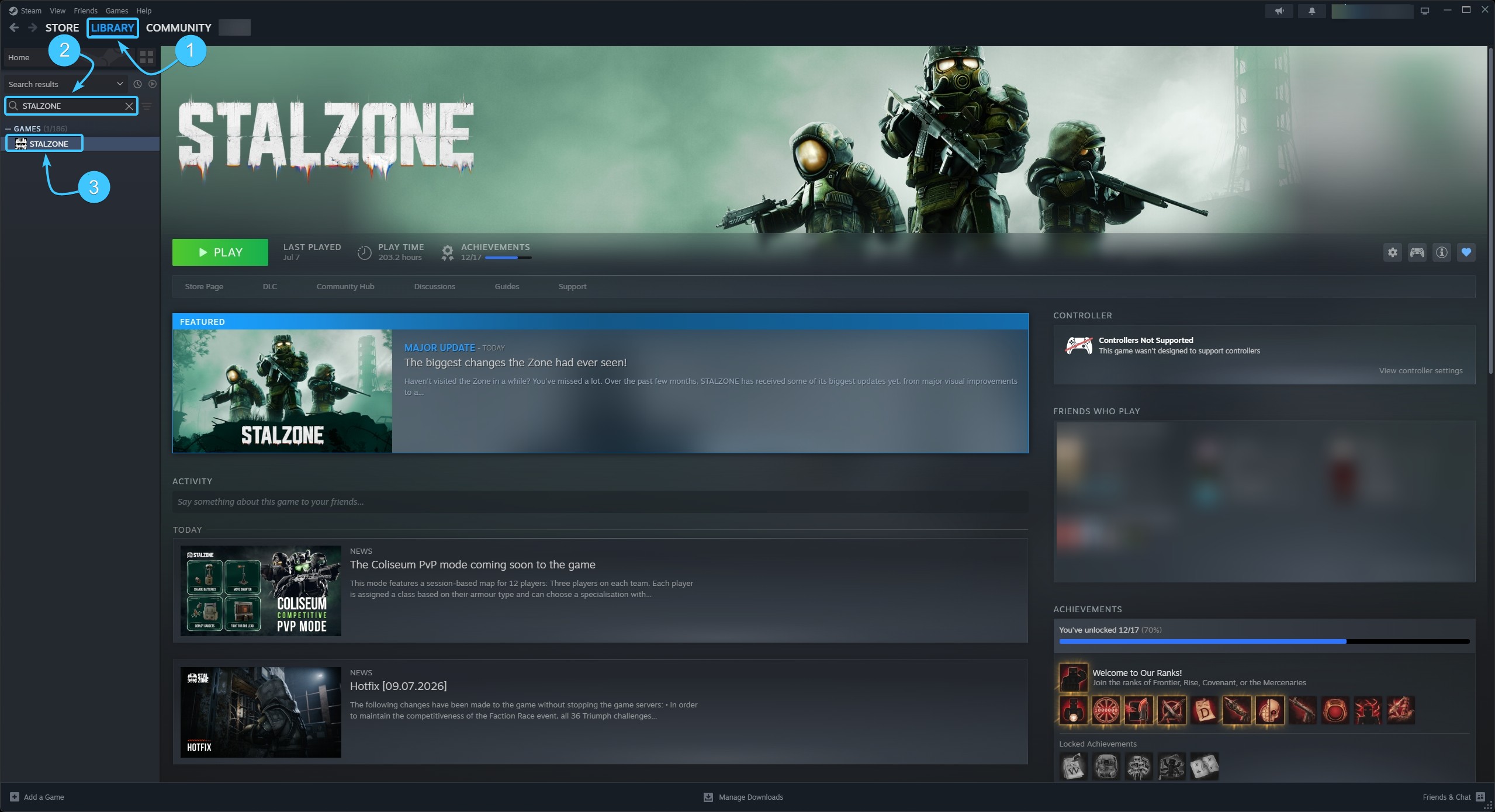
2. From the top, open the section called “Library”. In the list on the left, look for the game STALZONE.
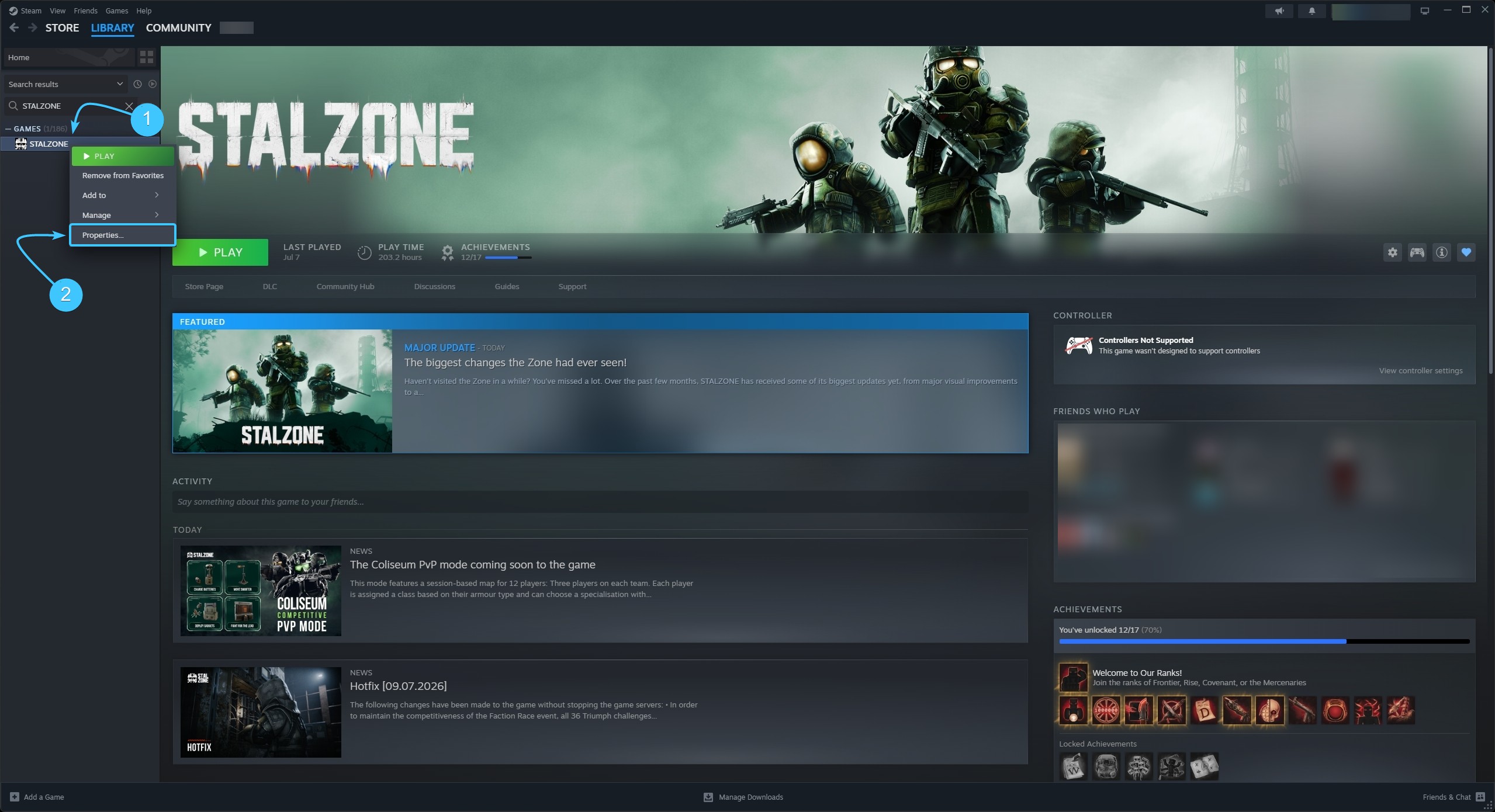
3. Right-click on STALZONE. In the list that appears, click the “Properties” button.
4. A new window will appear. Open the section entitled “Installed files” and click on the “Browse” button.
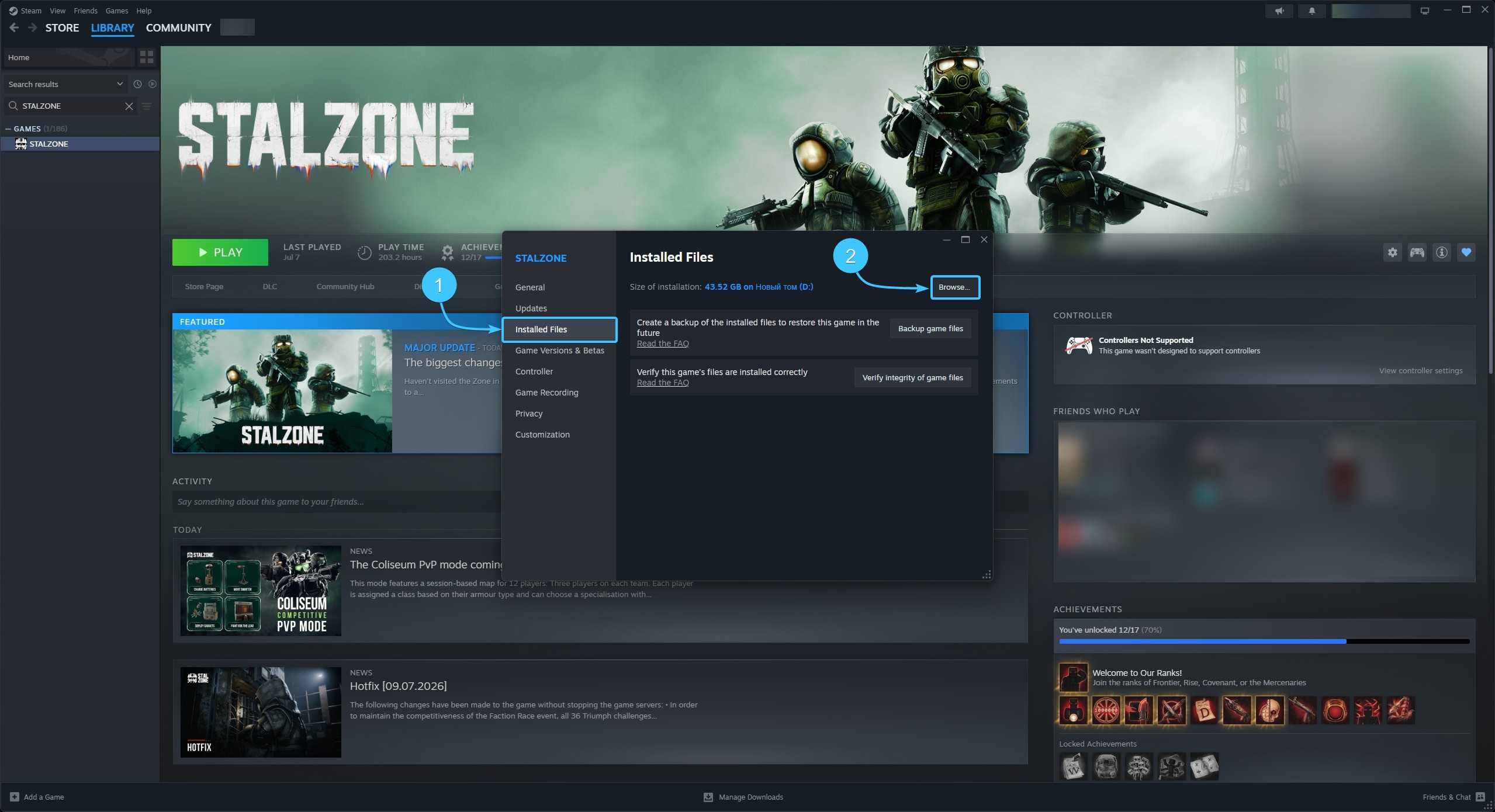
5. A file explorer window will appear with the STALZONE game folder already open.
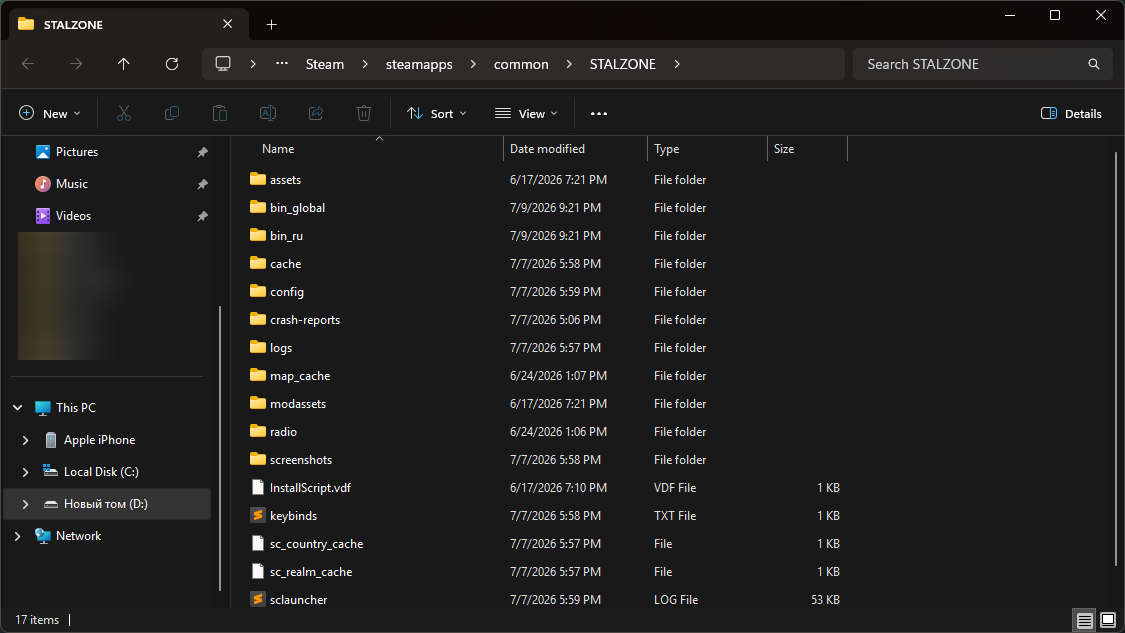
Location of “client” and “watchdog” files
1. Go to the logs folder. It contains the “client” and “watchdog” log files.
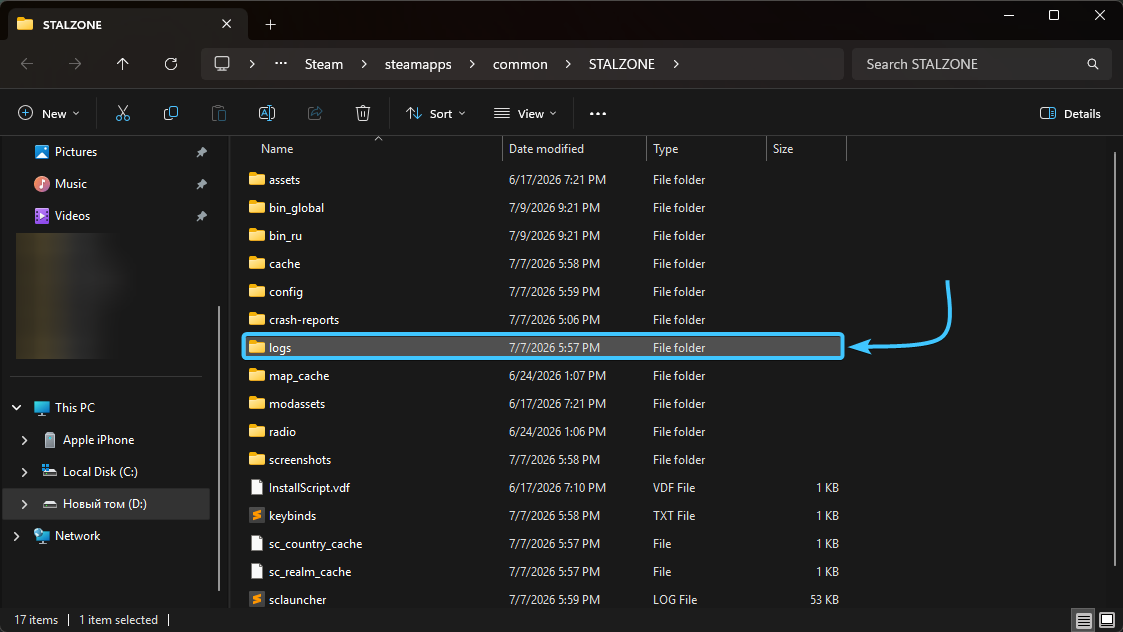
2. Select all these files and send them to the support team if necessary.
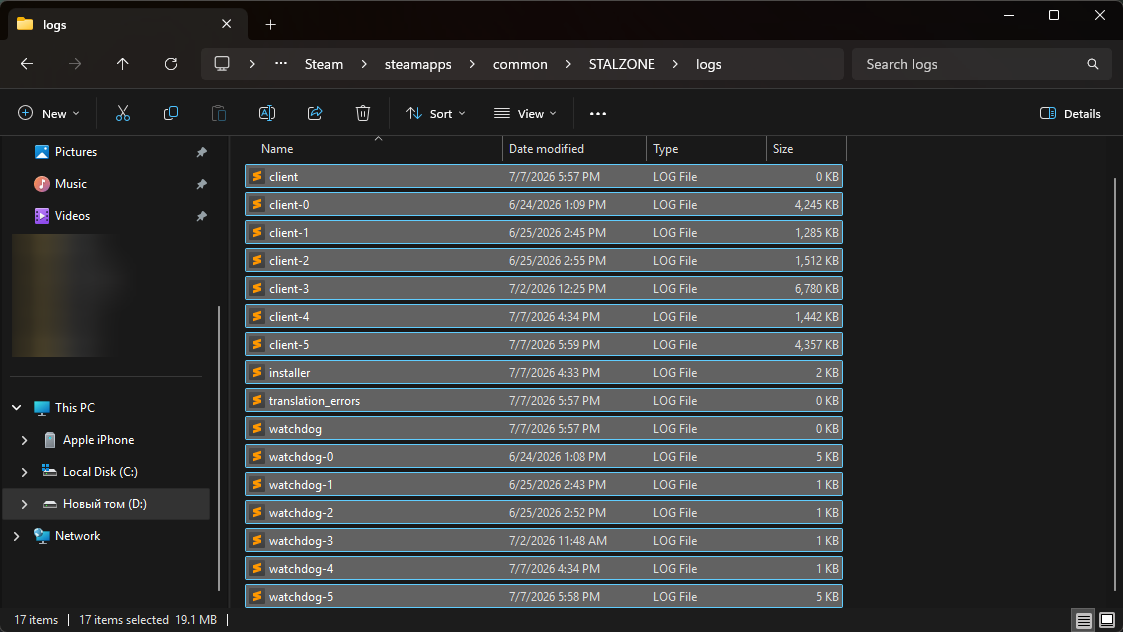
Location of the “hs_err_pid” and “crashreport” files
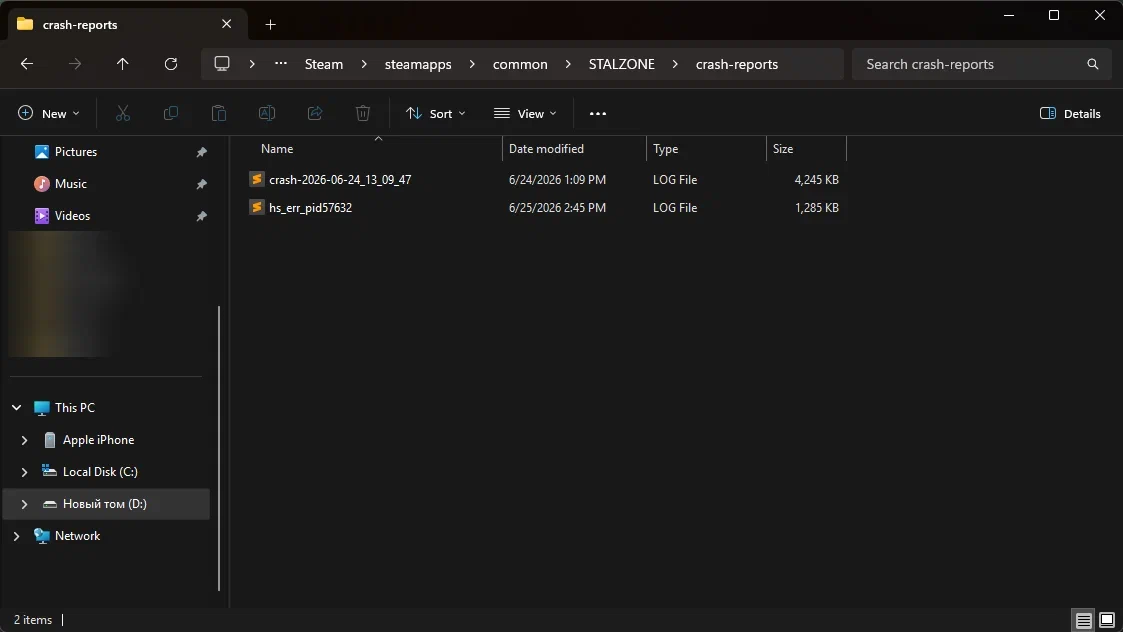
1. Go to the “crash-reports” folder. It contains the “hs_err_pid” and “crashreport” files.
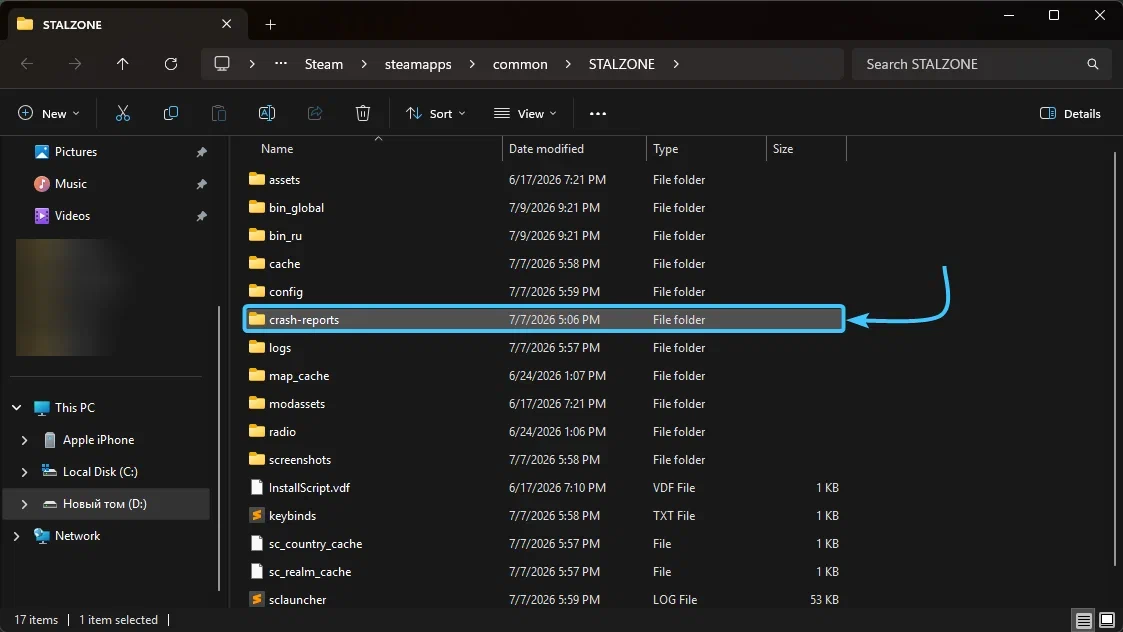
2. Select the required files and send them to our support team if necessary.