Guide

What Diagnostic Data Is Used For
When technical issues occur, the Support team may need information about the game, your system, and your network connection.
A dedicated SupportTool utility is included in the game folder to collect this information automatically.
It can collect:
- system information (MSInfo32 and DxDiag);
- game error reports and log files;
- a report on the network accessibility of the game servers.
Collecting diagnostic data and creating the archive may take up to 10 minutes.
SupportTool Location and Launch
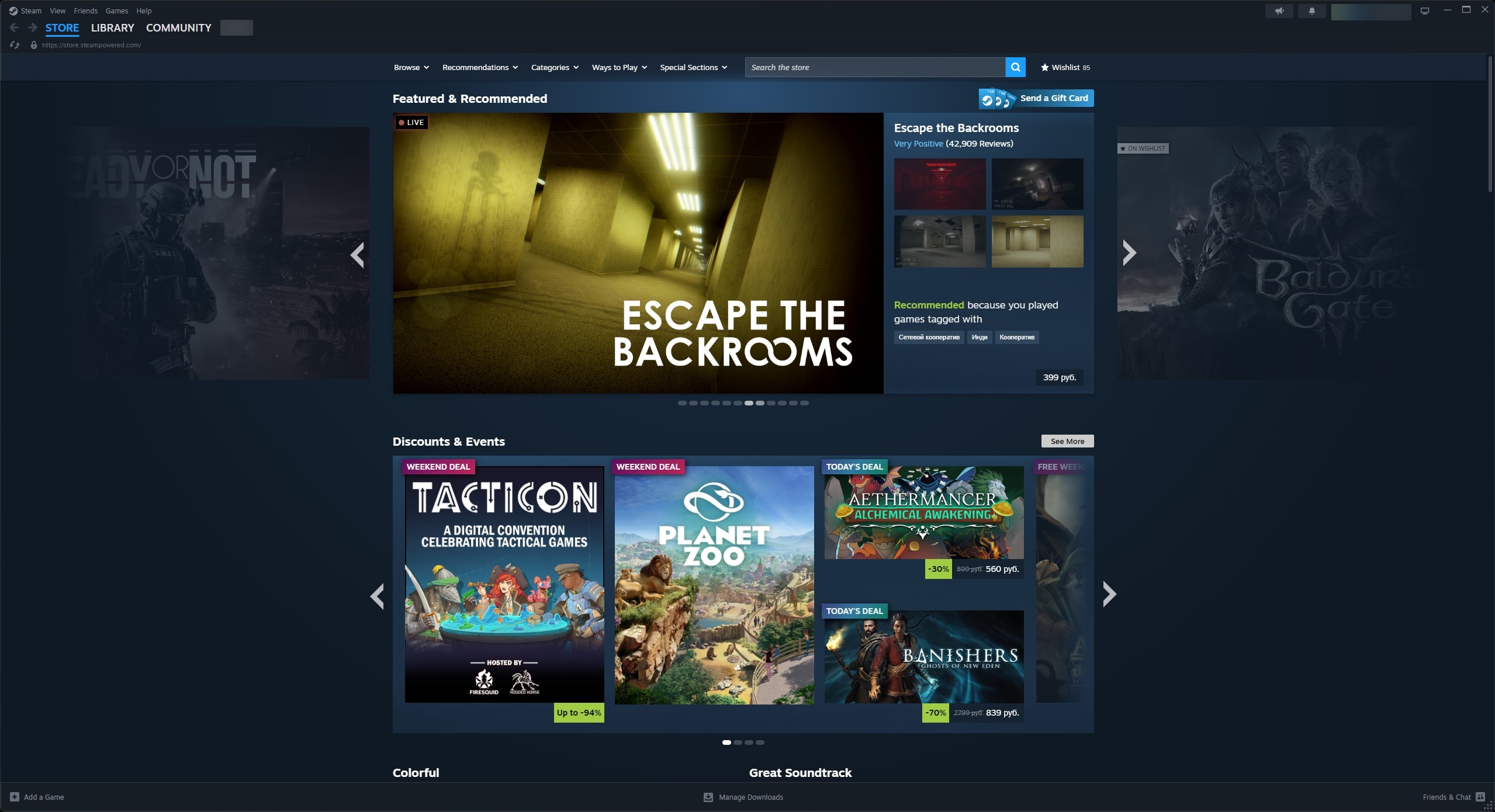
1. Launch the Steam application and sign in to your account if necessary.
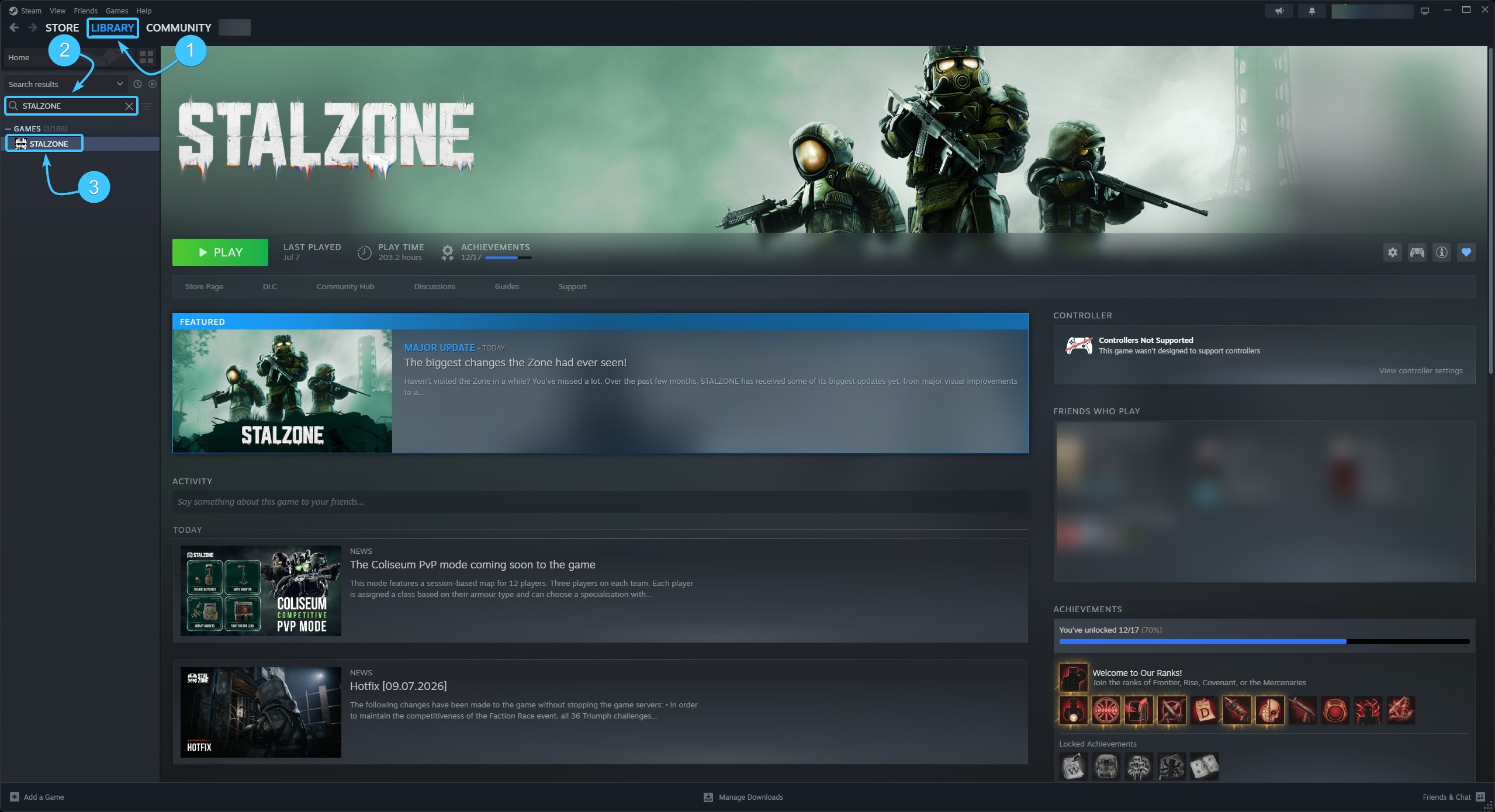
2. At the top, open the Library section. Find STALZONE in the list on the left.
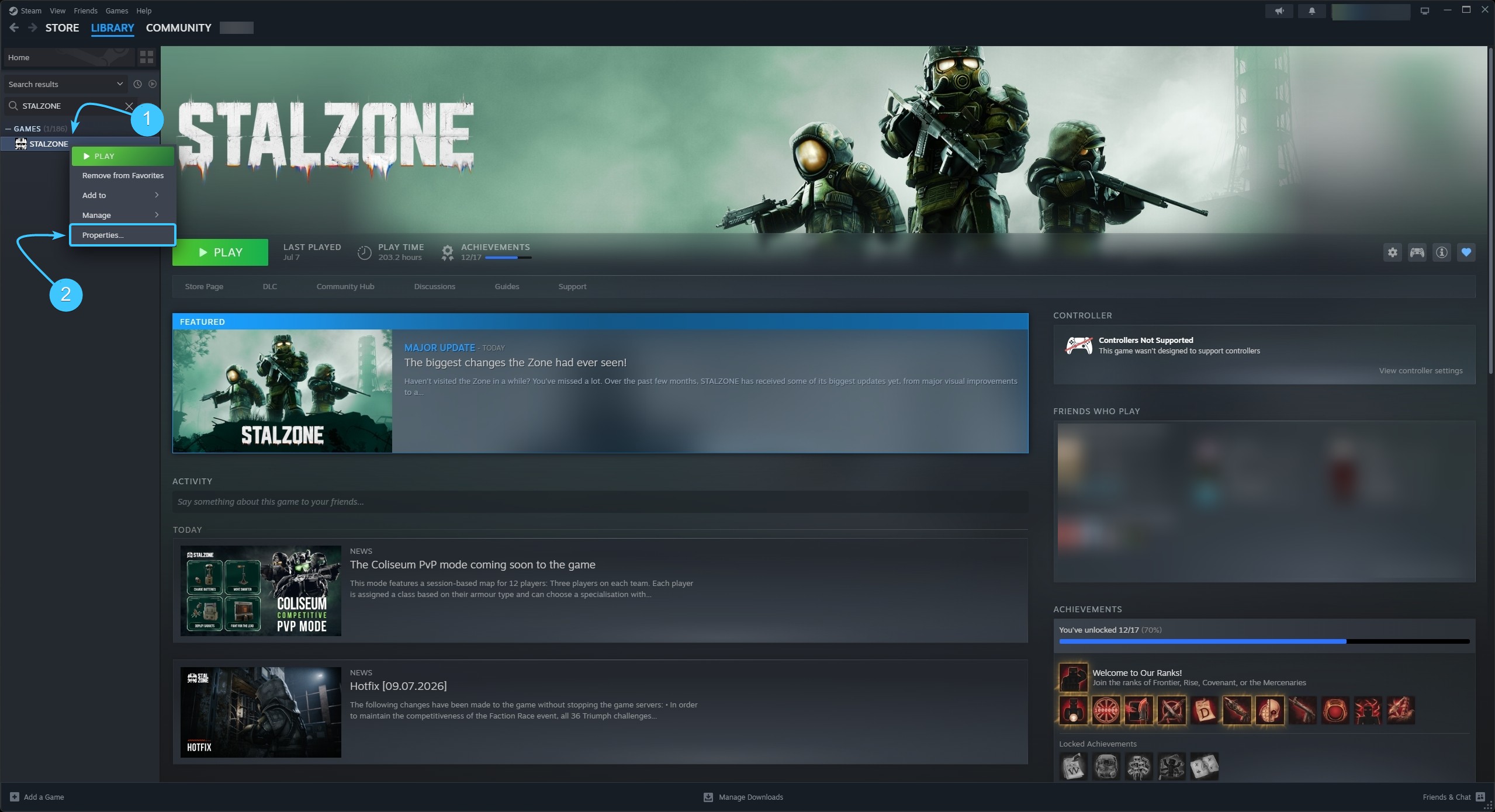
3. Right-click on STALZONE. From the menu that appears, select Properties.
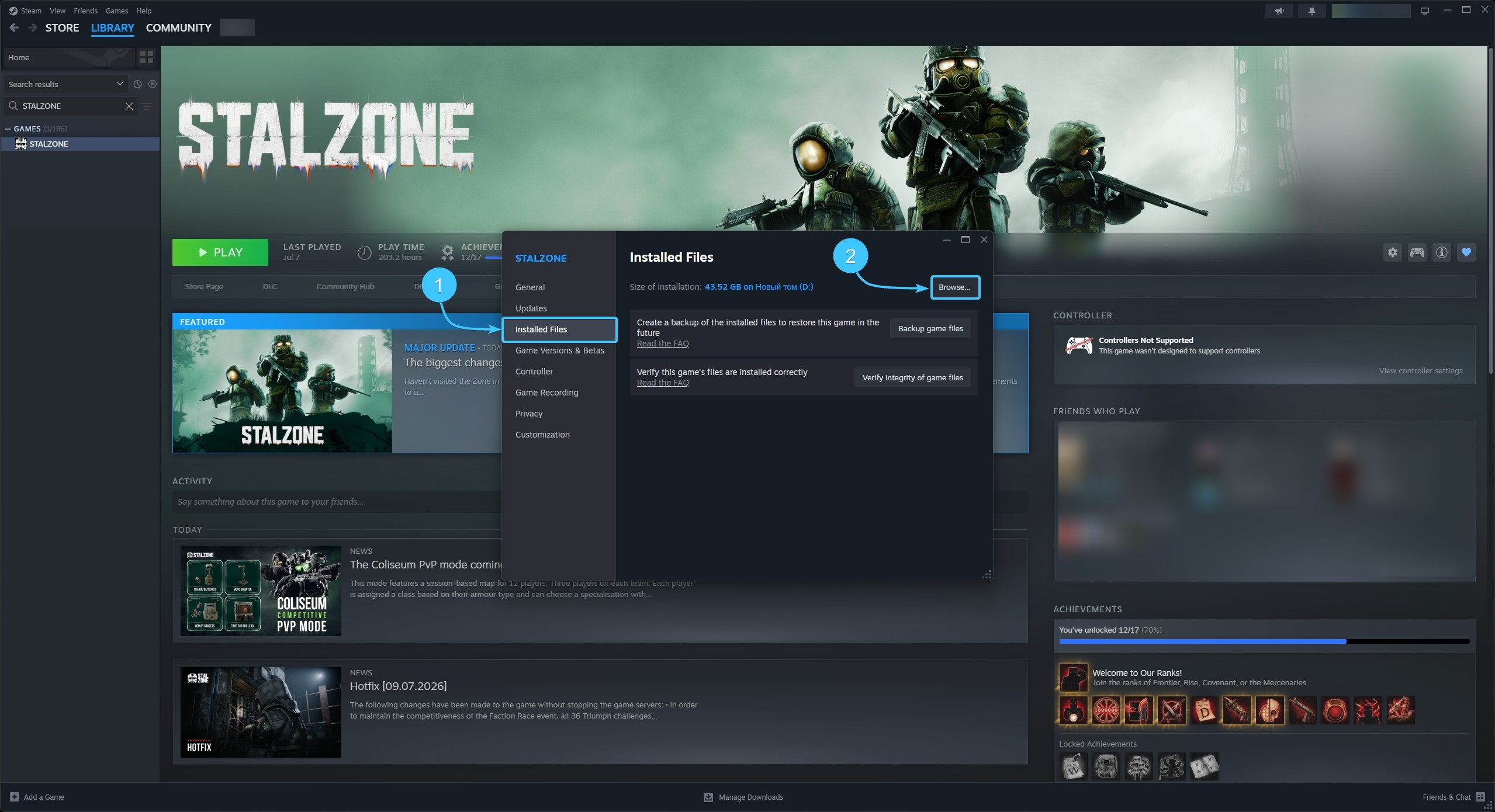
4. A new window will appear. On the left, open the Installed Files section and click Browse.
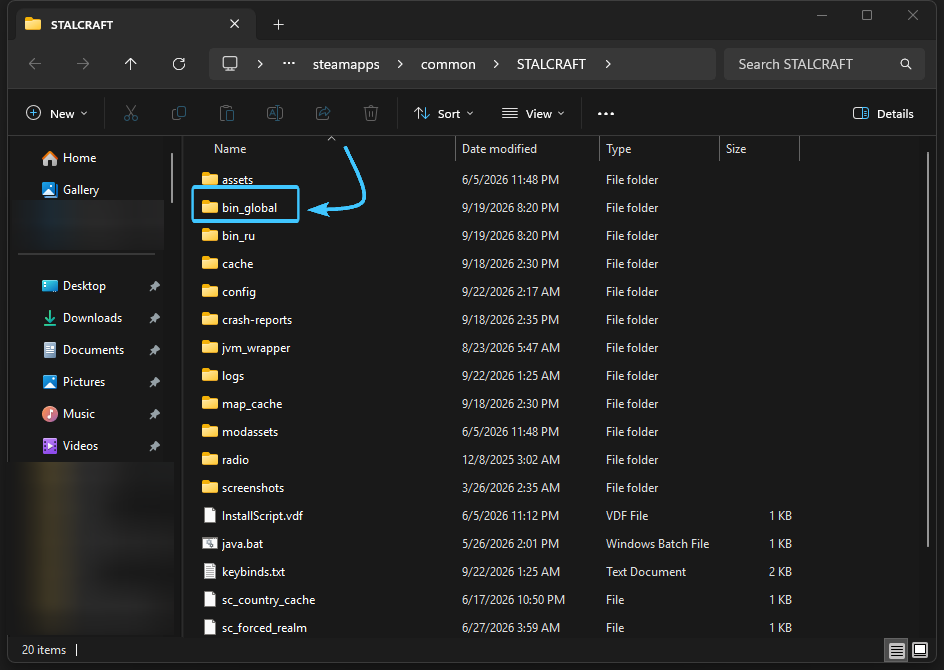
5. In the game folder that opens, navigate to the bin_global folder.
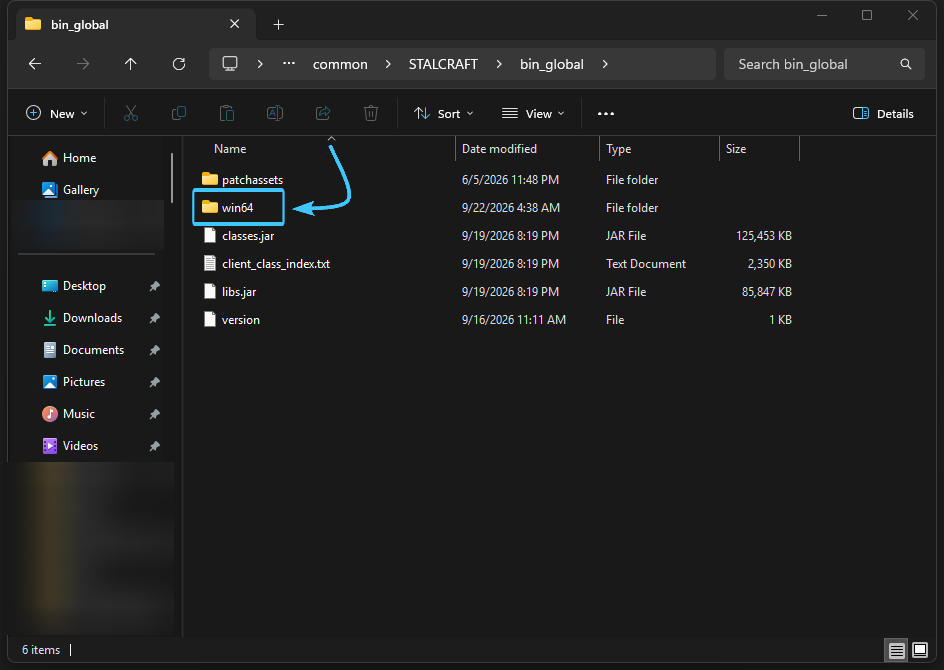
6. Go to the win64 folder.
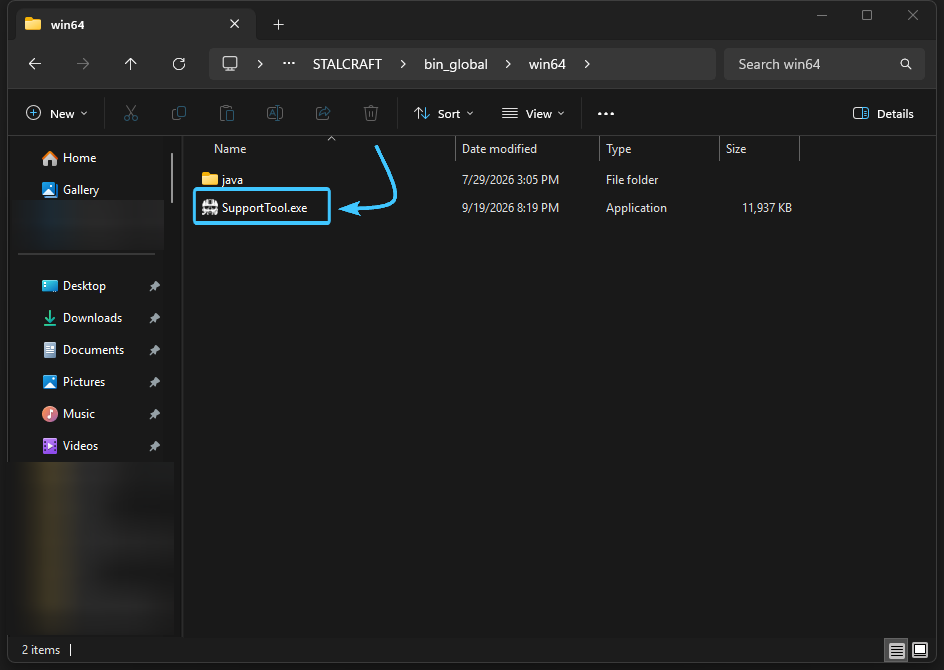
7. Find and launch SupportTool.exe.
Creating and Sending the Archive
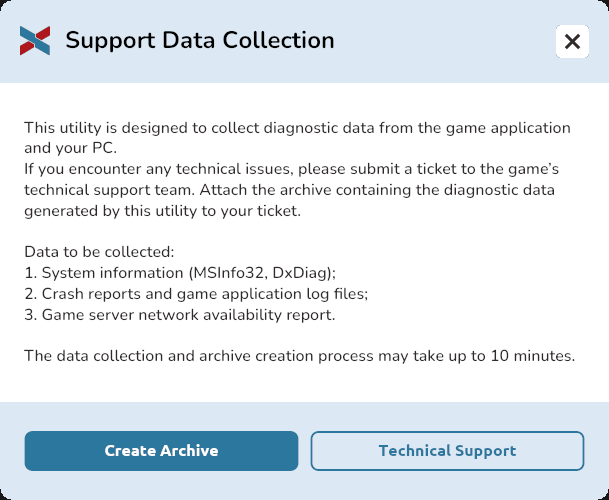
1. The Support Data Collection window will appear. Click the Create Archive button.
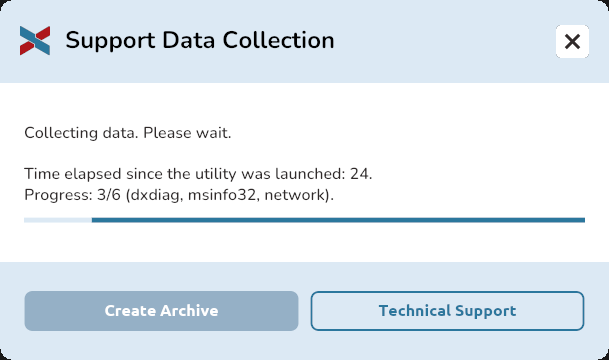
2. Wait for the diagnostic data collection to complete.
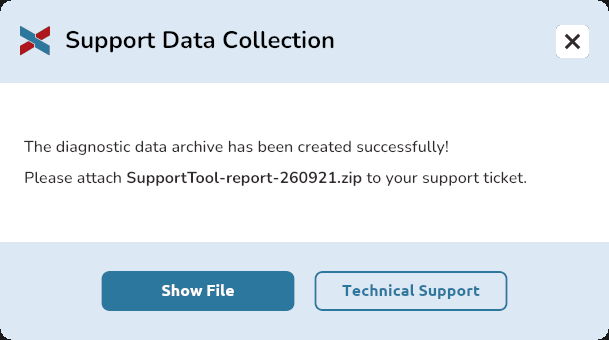
3. Once the process is complete, a message confirming that the archive was successfully created will appear. Click the Show File button.
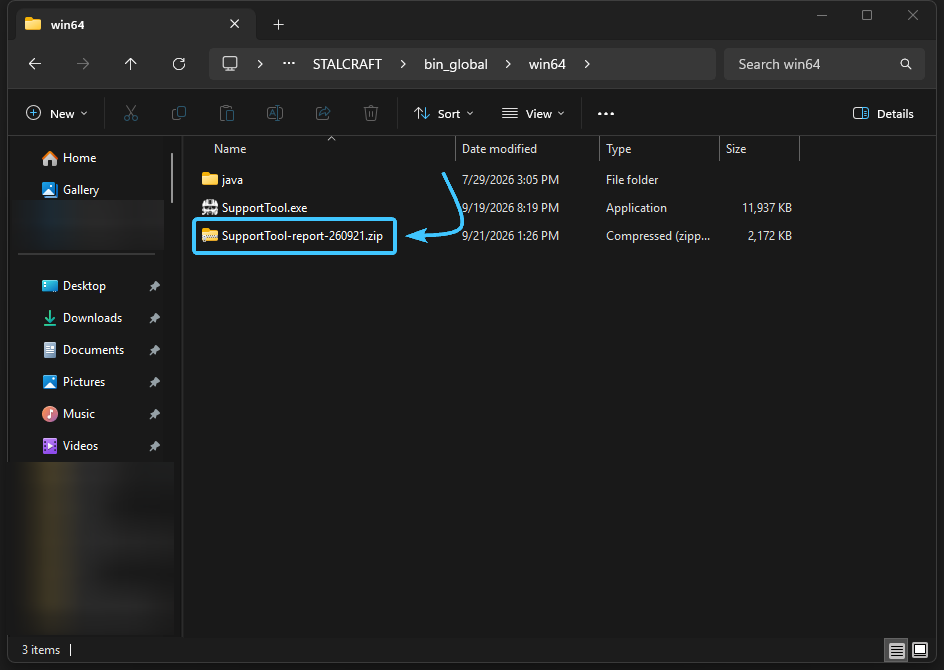
4. An archive will be created in the win64 folder. Its name starts with SupportTool-report- and ends with the .zip extension.
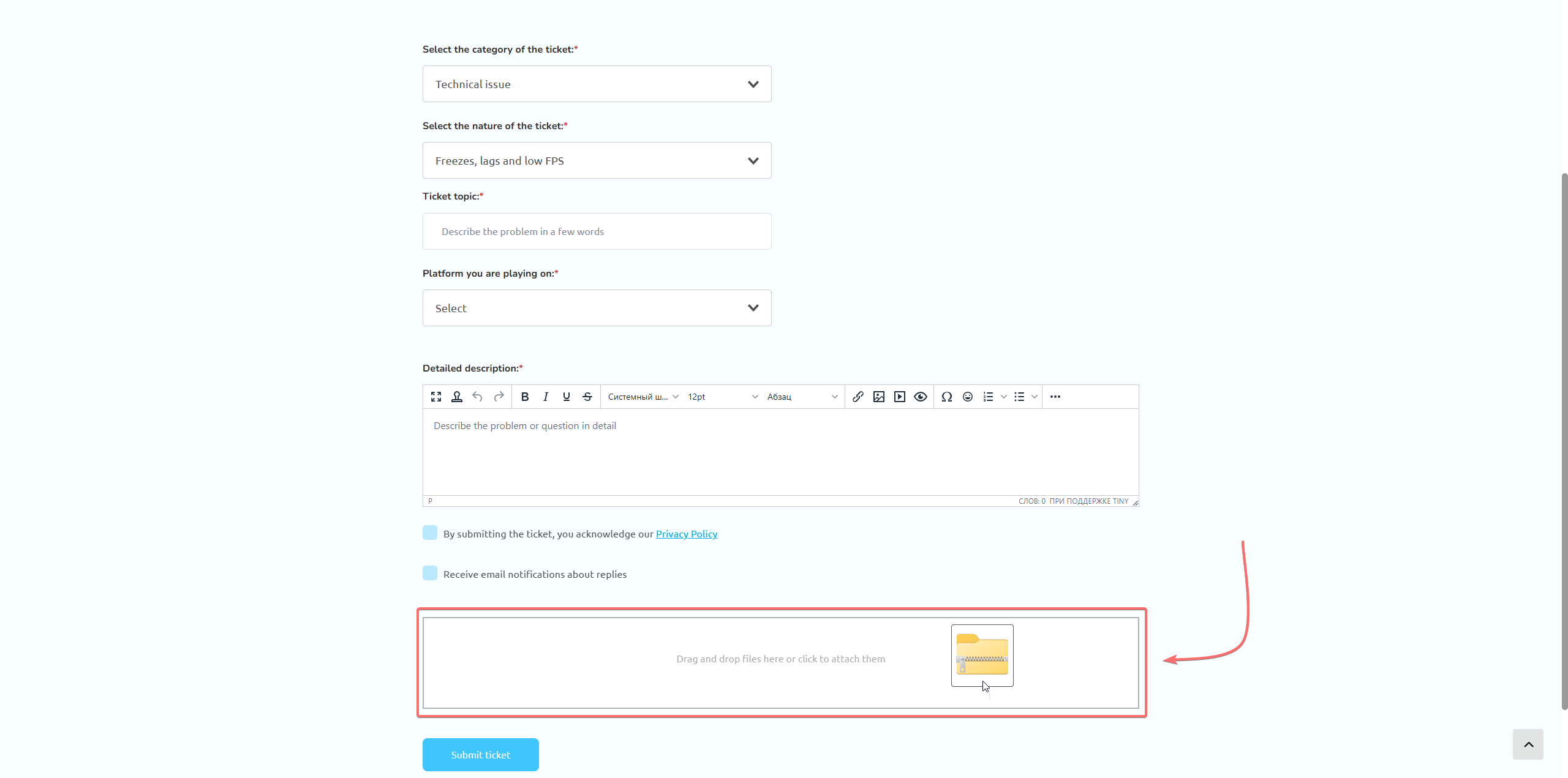
5. Attach this archive to your support ticket.