Guide

Contents
Ending authorisation sessions in Steam #1
1. Go to the Steam platform official website and log in, if necessary.
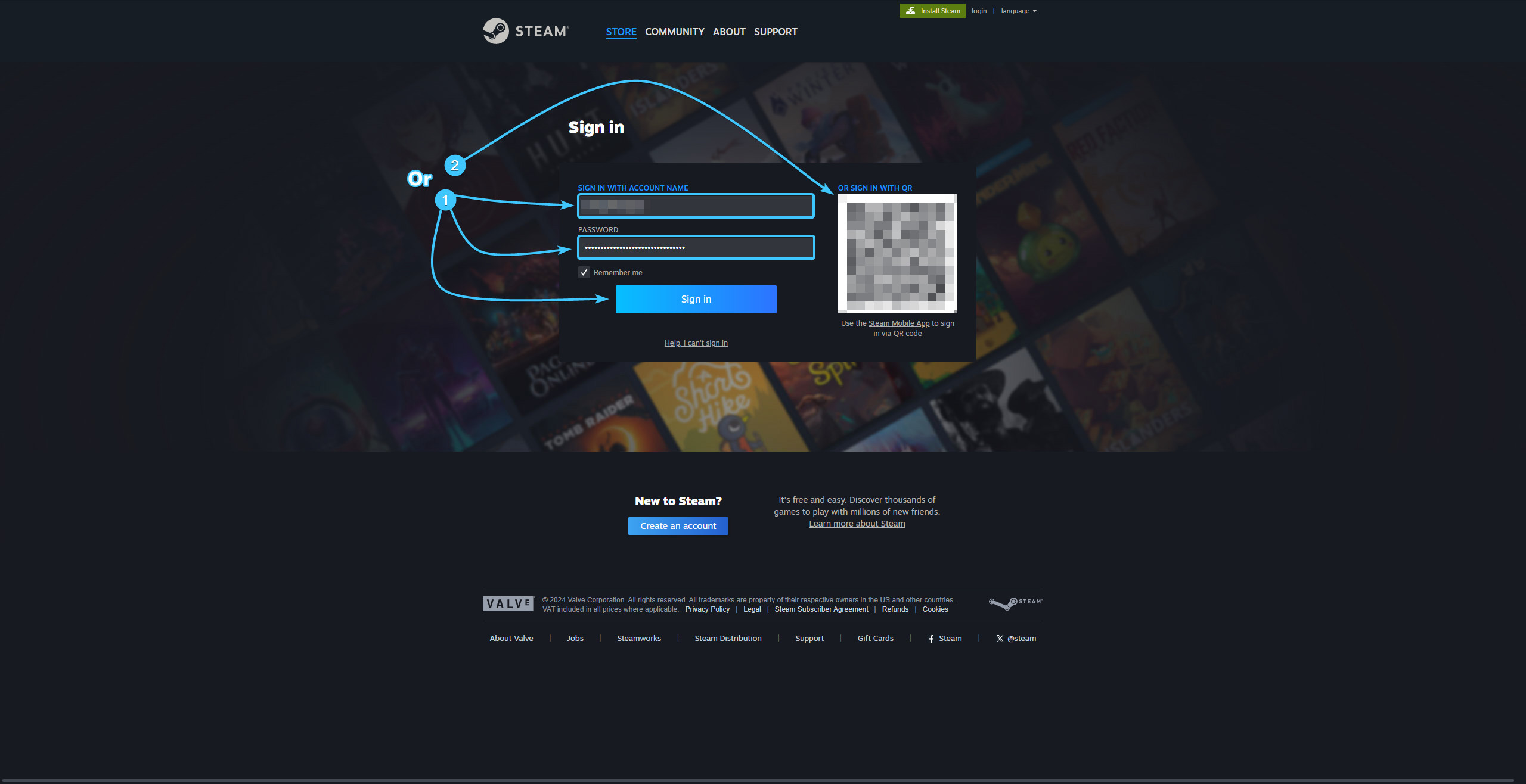
2. In the upper right corner, click on the account name to open the list of features.

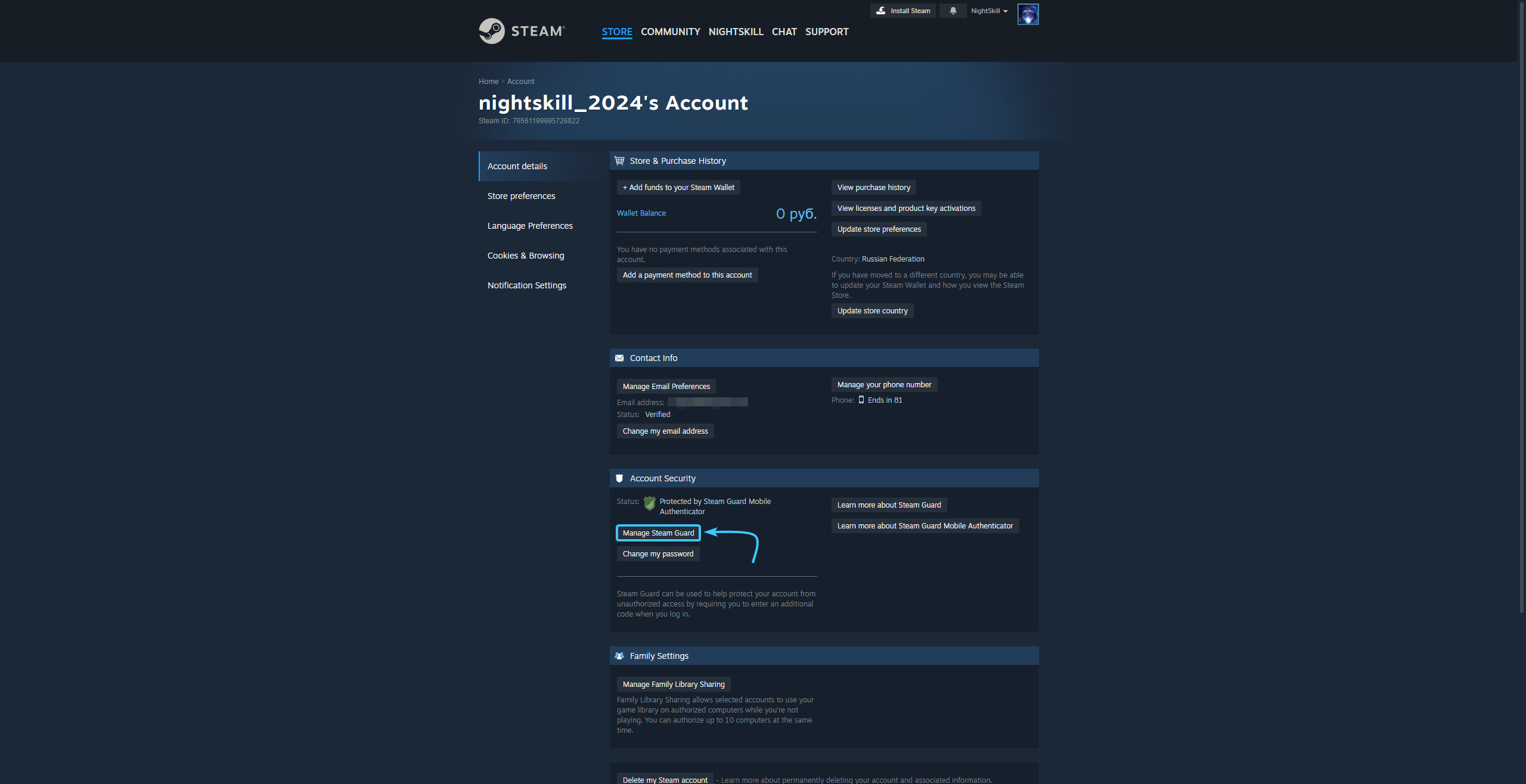
3. Click the “About details: {Login}” to go to the Steam account settings.

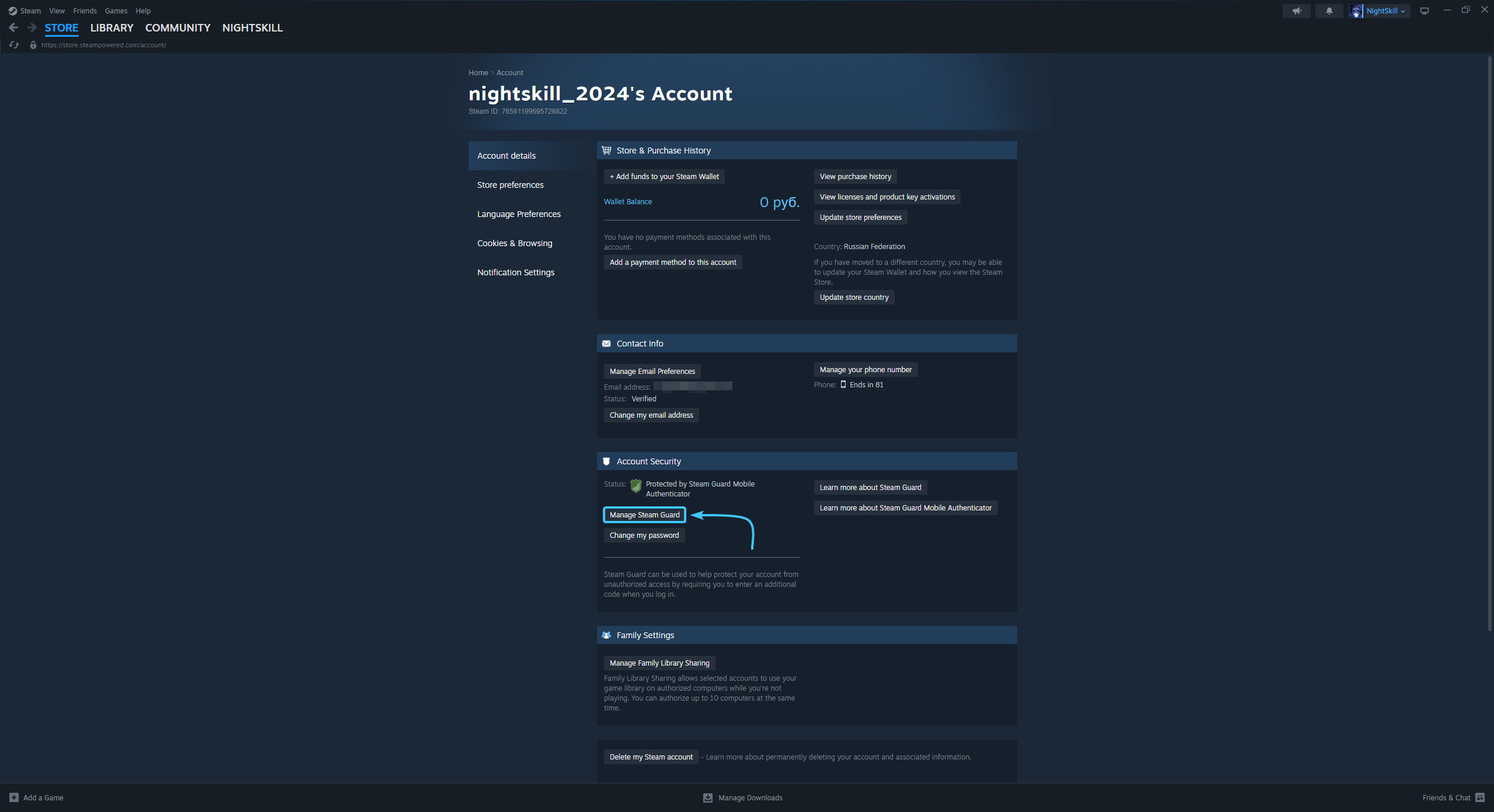
4. Click the “Manage Steam Guard” button, which is located in the “Account Security” section.
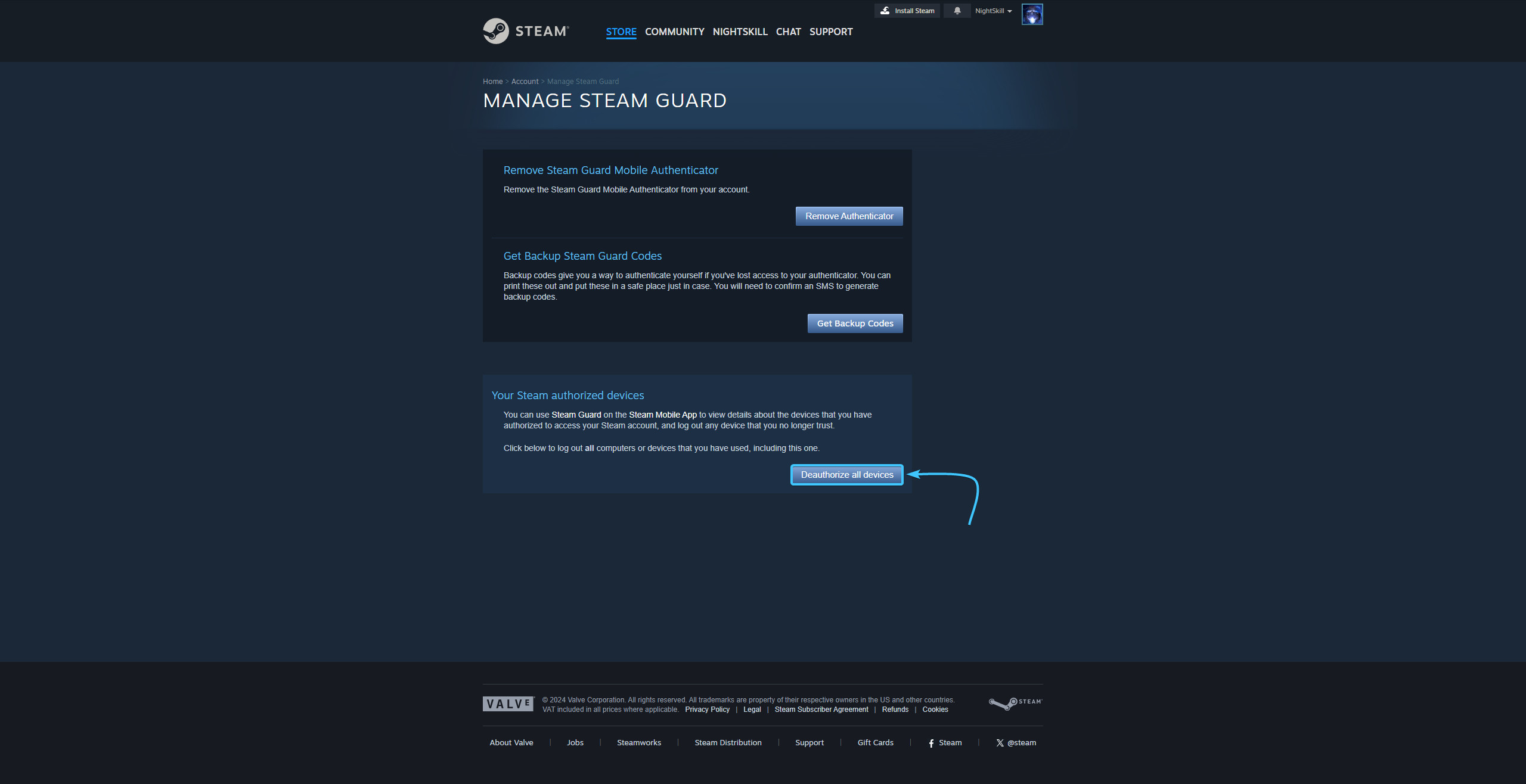
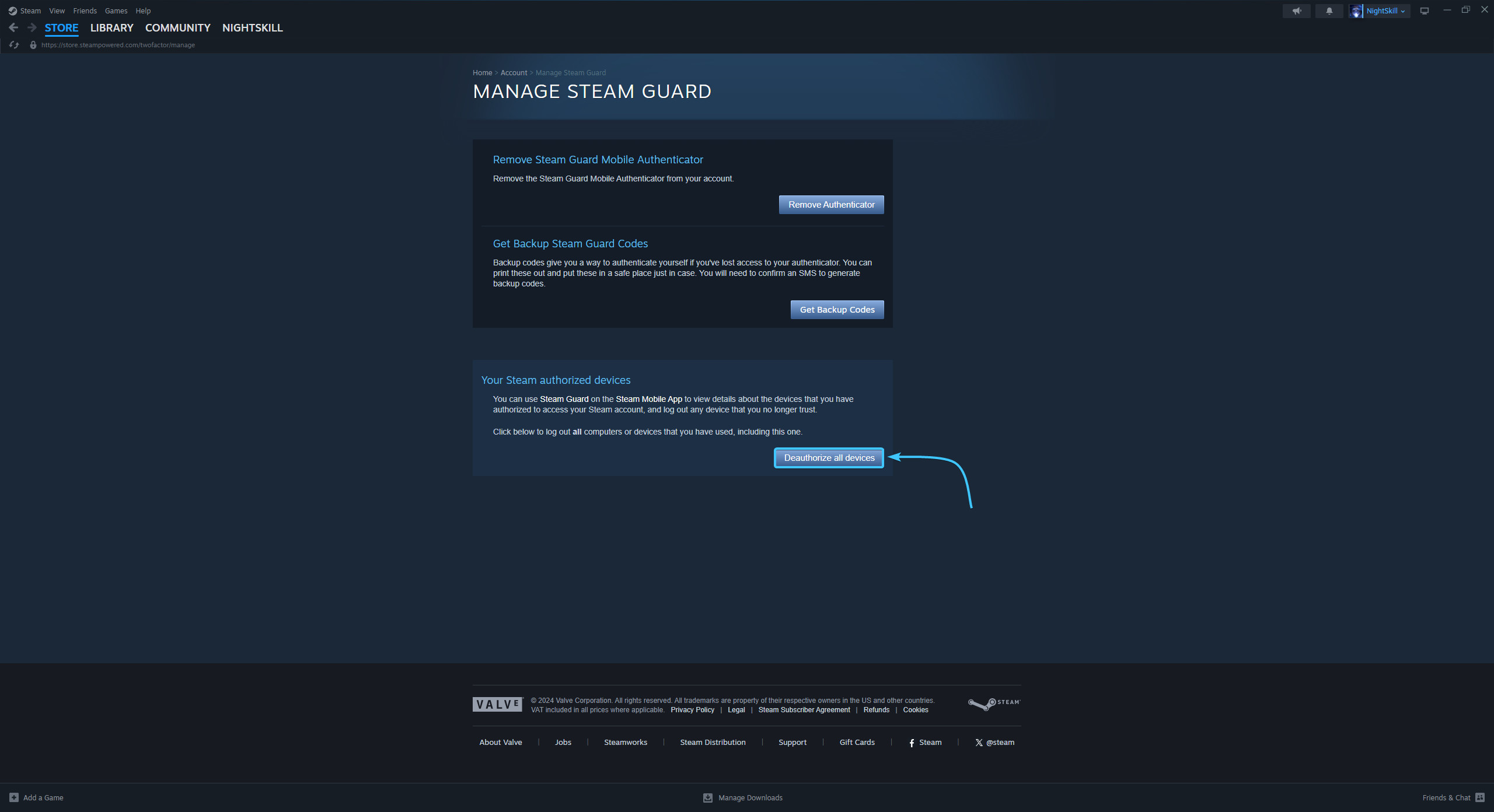
5. In the “Your Steam authorized devices” subsection, click “Deauthorize all devices”.
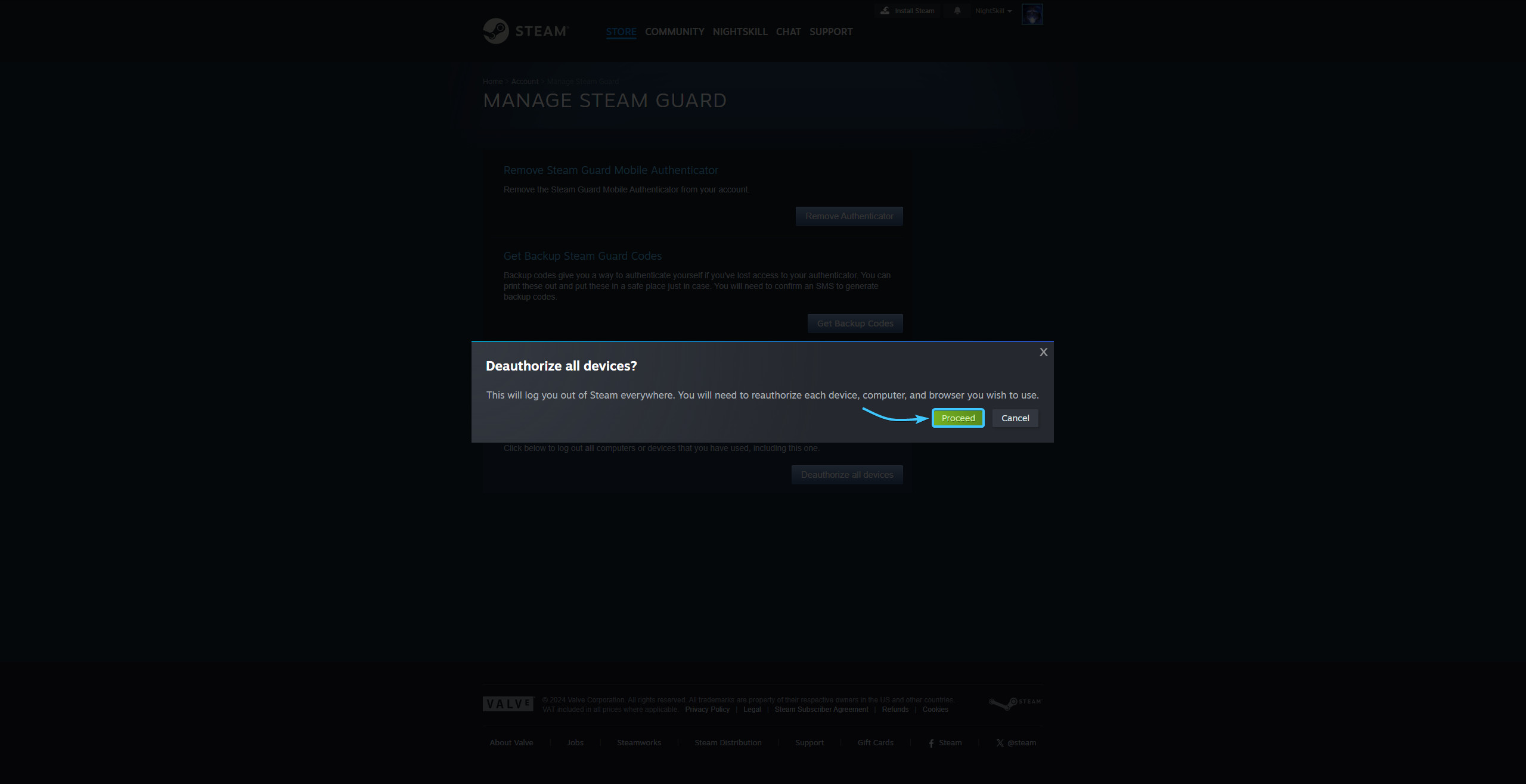
6. A confirmation window will appear. Click the “Proceed” button to end the sessions.
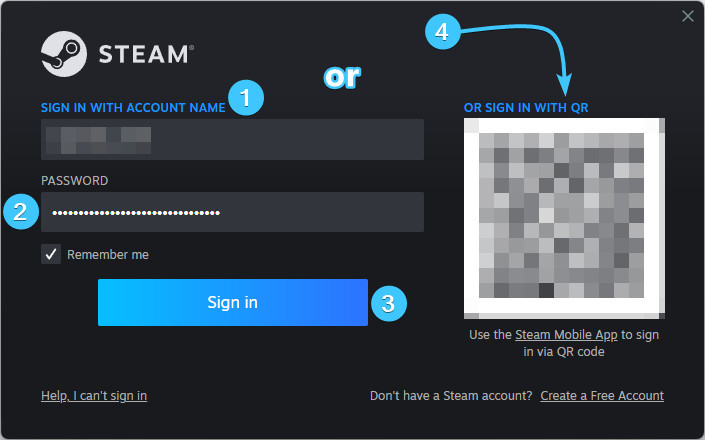
7. All authorisation sessions will then be ended. Proceed with the authorisation again.
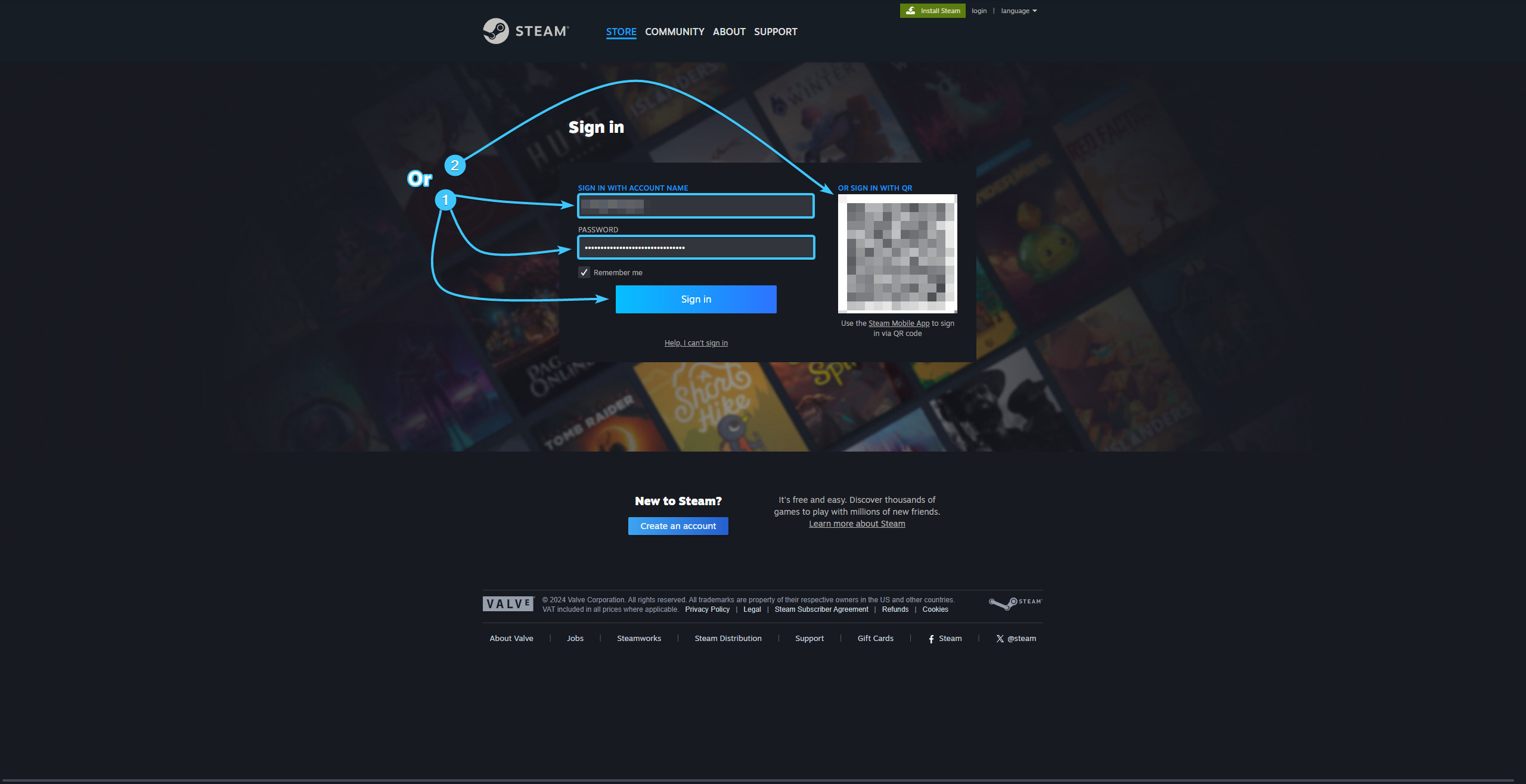
Ending authorisation sessions in Steam #2
1. Launch the Steam app and log in with your account, if necessary.
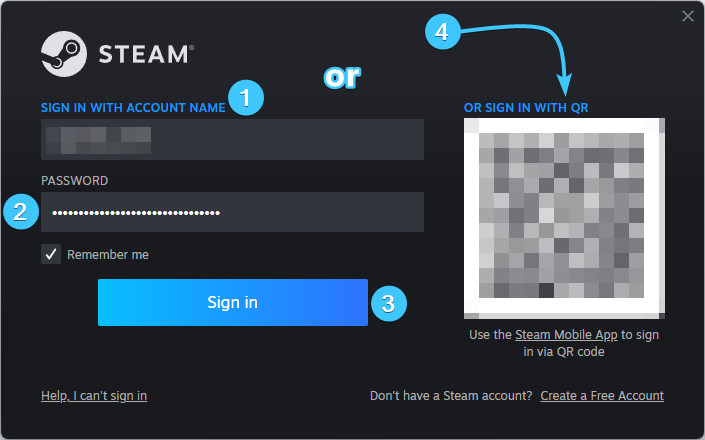
2. In the upper right corner, click on the account name to open the list of features.

3. Click the “About details: {Login}” to go to the Steam account settings.

4. Click the “Manage Steam Guard” button, which is located in the “Account Security” section.
5. In the “Your Steam authorized devices” subsection, click “Deauthorize all devices”.
6. A confirmation window will appear. Click the “Proceed” button to end the sessions.
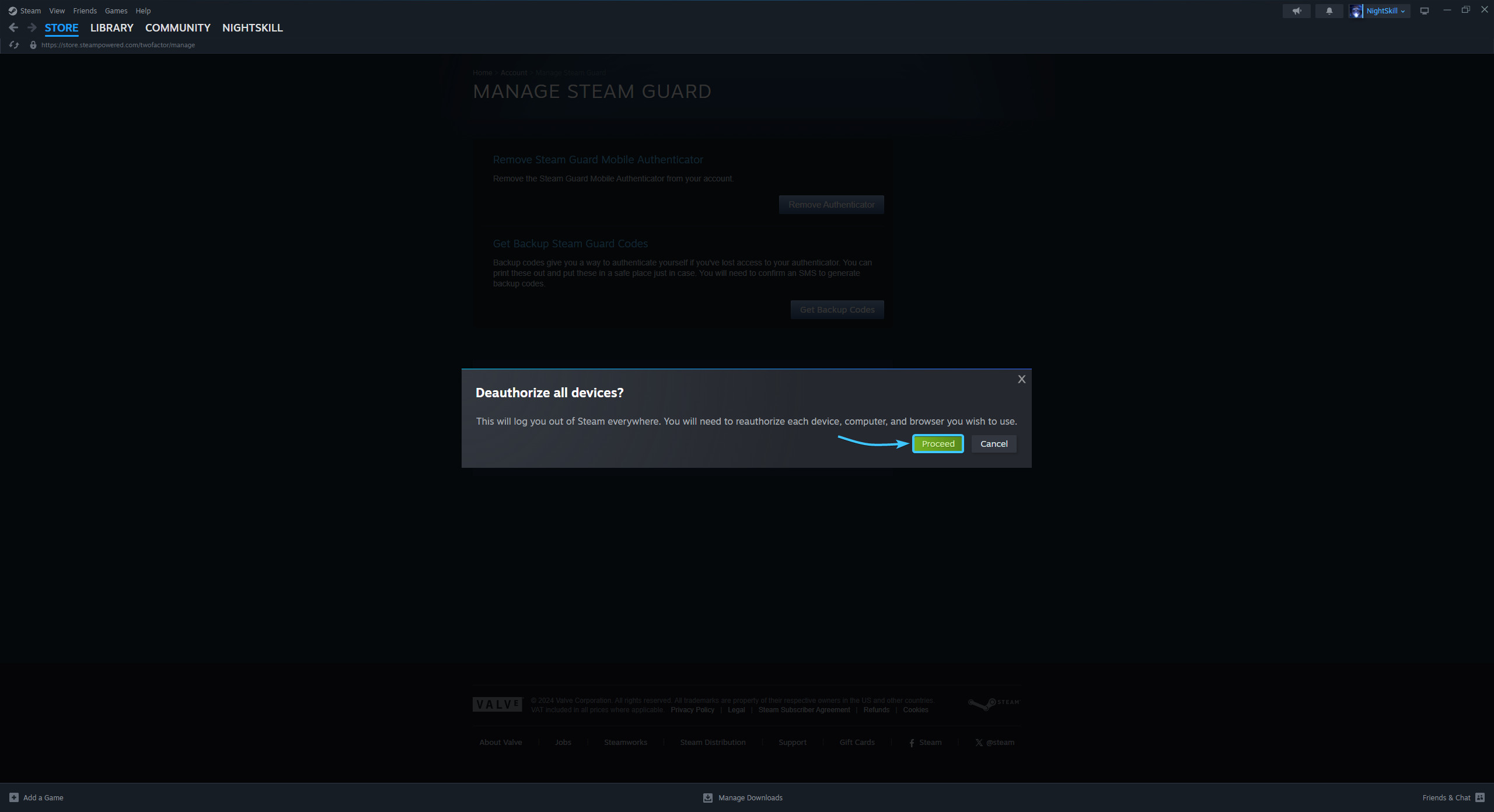
7. All authorisation sessions will then be ended. Proceed with the authorisation again.
Other guides
- Password change in Steam;
- Email change in Steam;
- Password reset in Steam;
- Steam Guard management;
- Steam Guard backup codes;
- Linking phone in Steam.
Keywords: ыуыышщты, ending sessions in steam, how to ending sessions in steam, i have a problem with ending sessions in steam please help, steam log out everywhere, ENDING SESSIONS IN STEAM, steam in sessions ending, sessions, ending sessons in steam, ending sessoins in steam, завершение сеансов в steam, deauthorize all devices, steam sessions