Guía

Contents
Information about the OBS Studio application:
The OBS Studio application provides the following set of features:
- Screen recording of specific applications and the operating system desktop;
- Creating screenshots of specific applications and the operating system desktop;
- Live streaming specific applications and the operating system desktop.
Recording video using the OBS Studio application
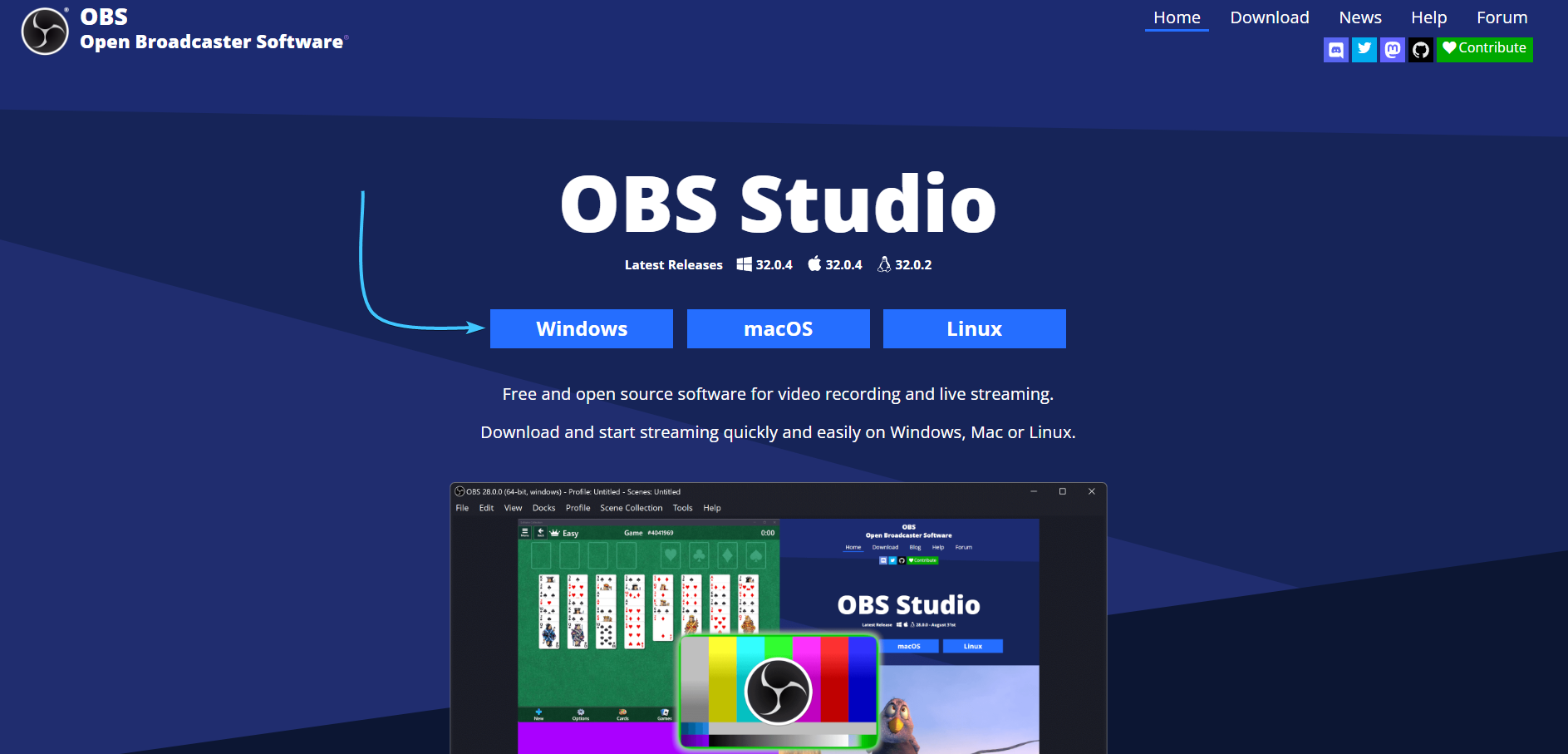
1. Go to the official OBS Studio website and click the Windows button.
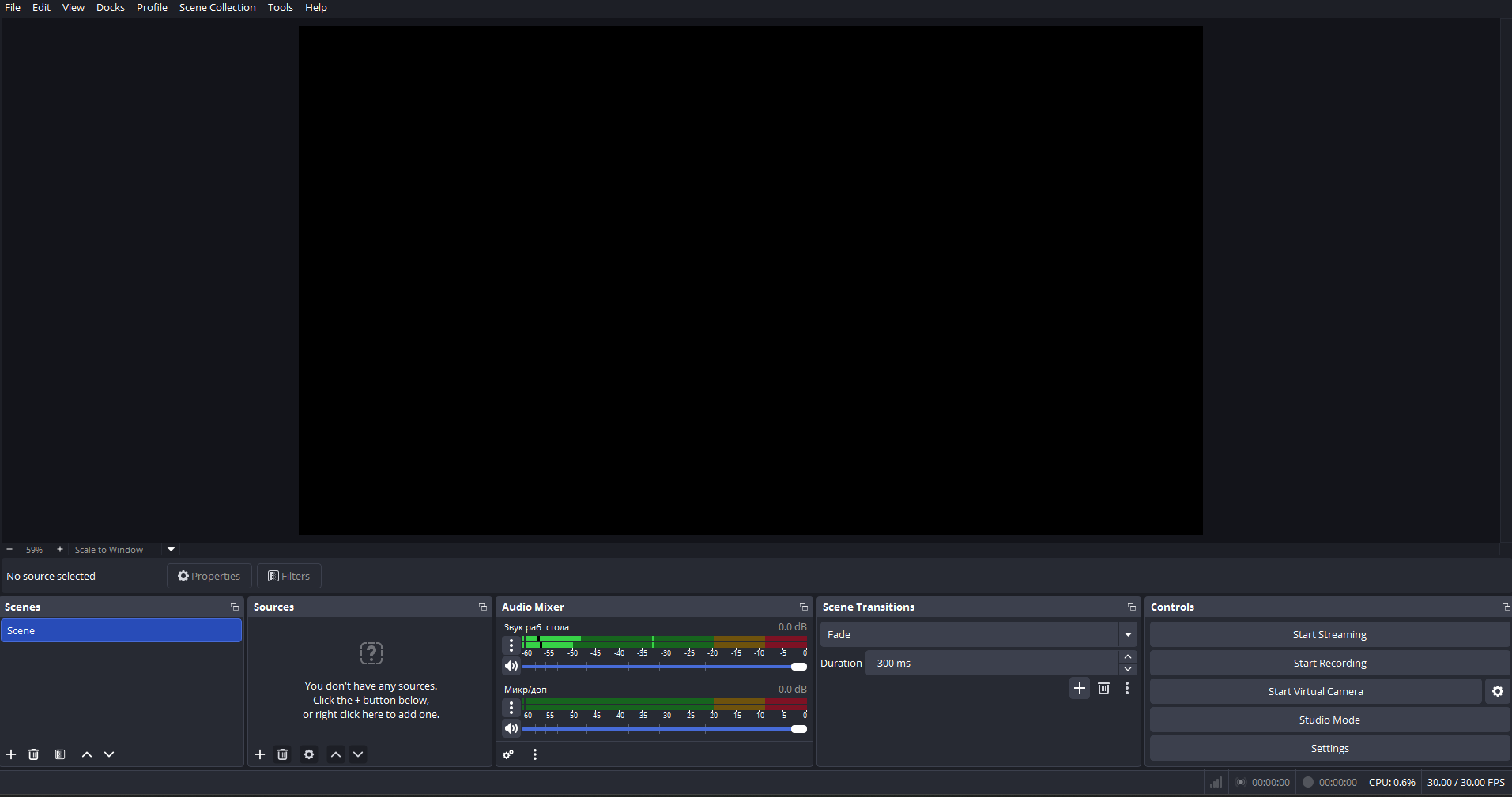
2. Run the downloaded installer and install the OBS Studio application. Then launch it.
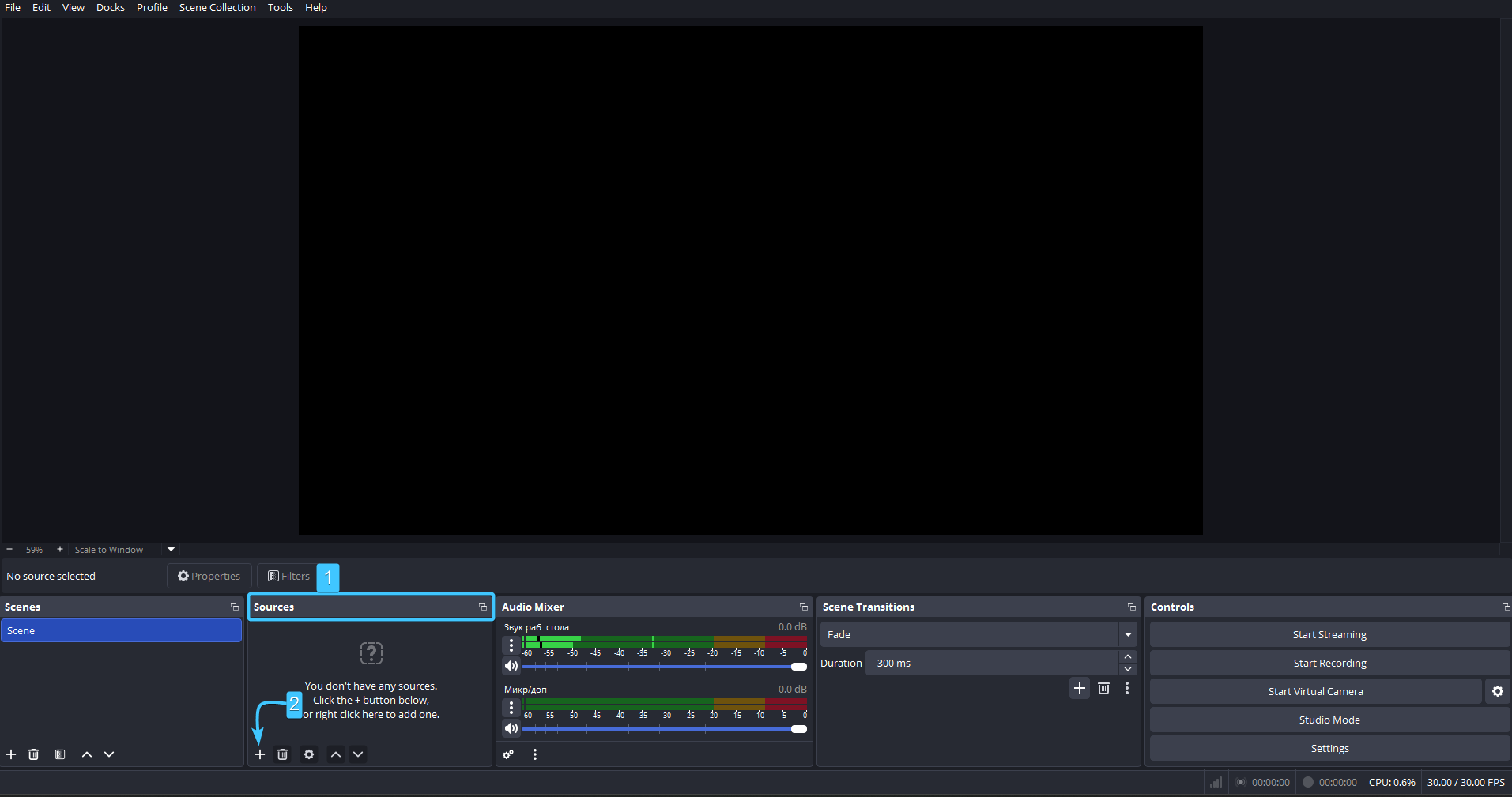
3. In the “Sources” section, click the “+” button. Select the desired screen capture type from the list.
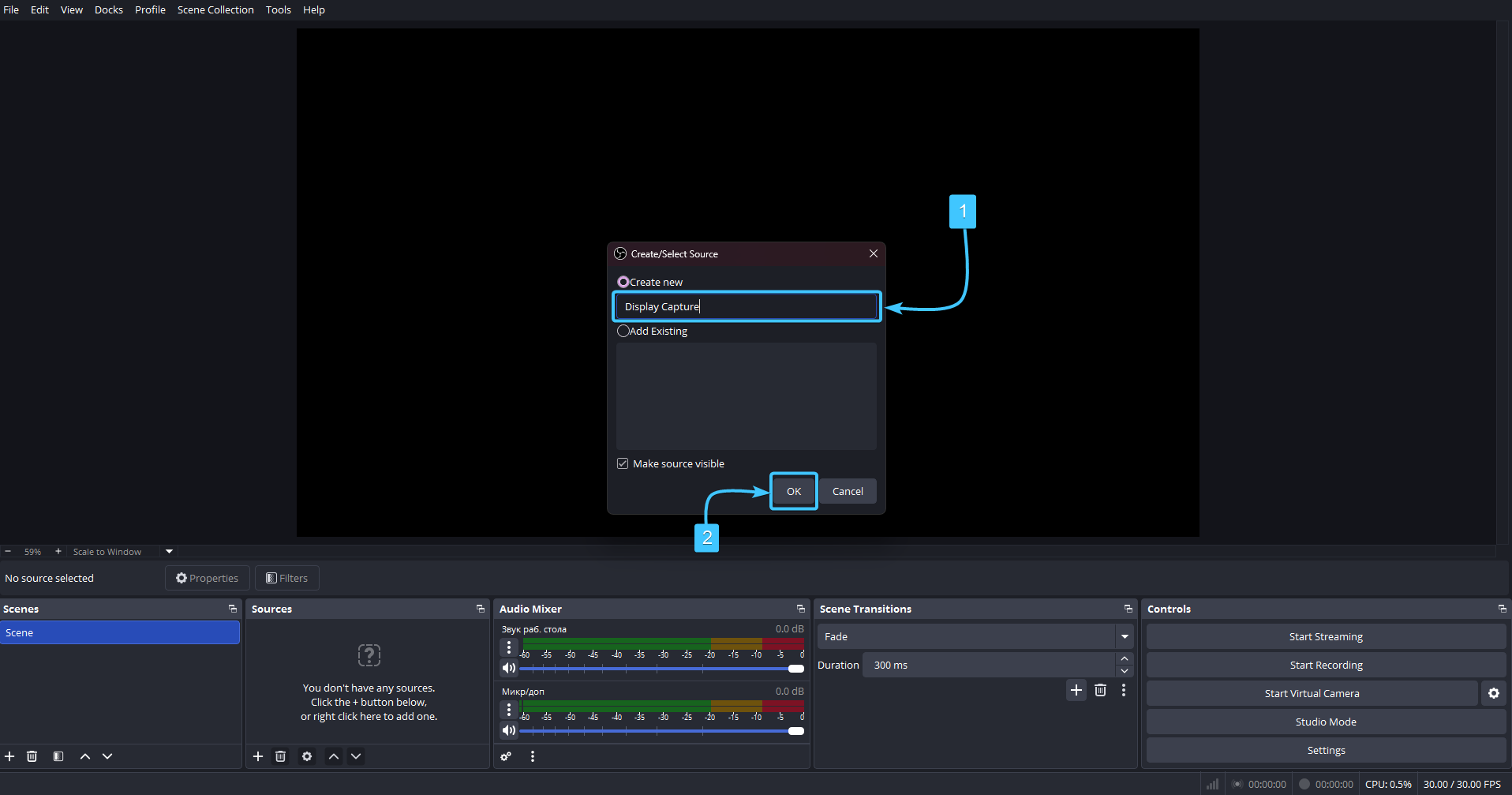
4. A new window will appear. Name the screen capture and click “OK” to continue.
5. A new window will appear again. Select the desired capture method and click “OK”.
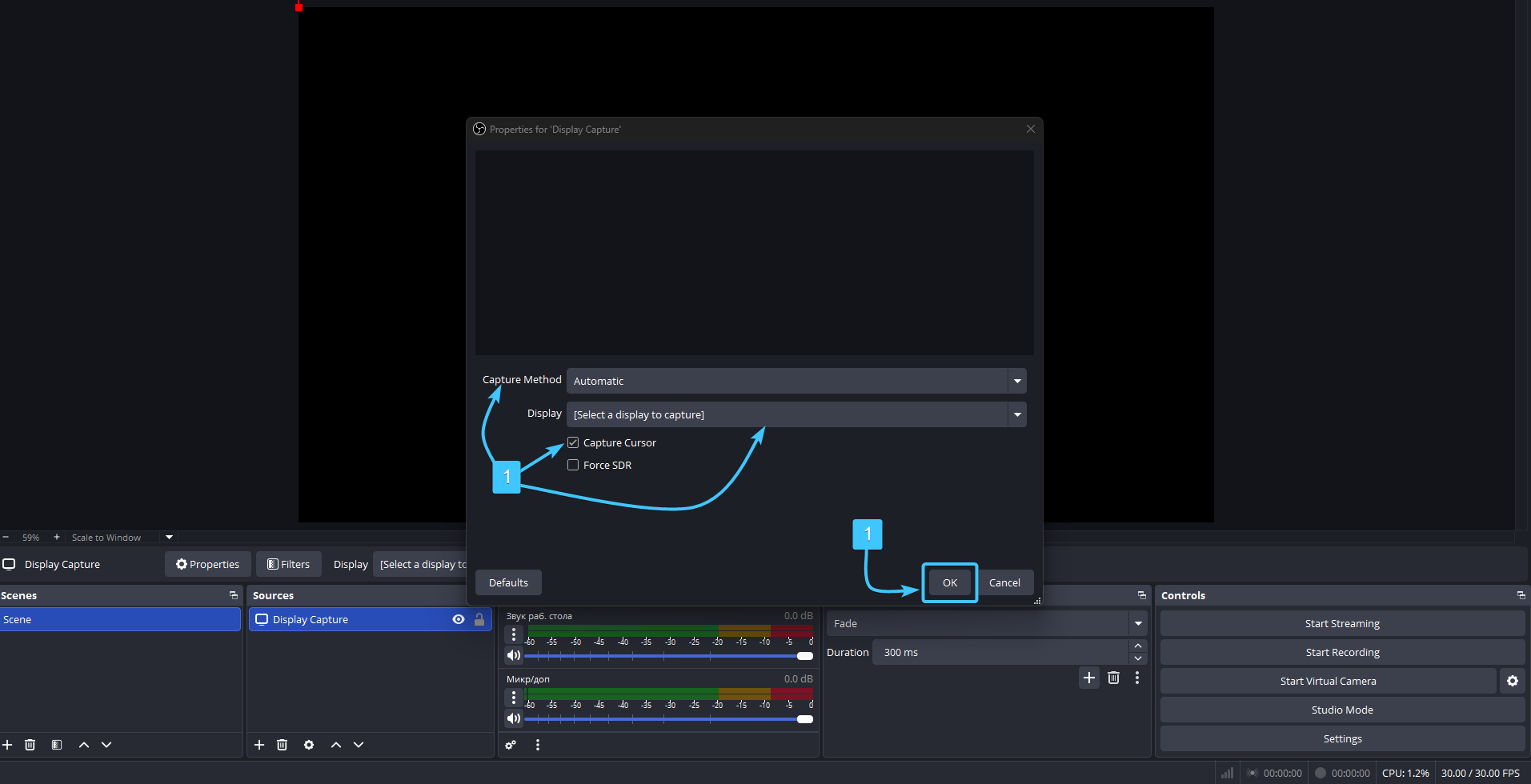
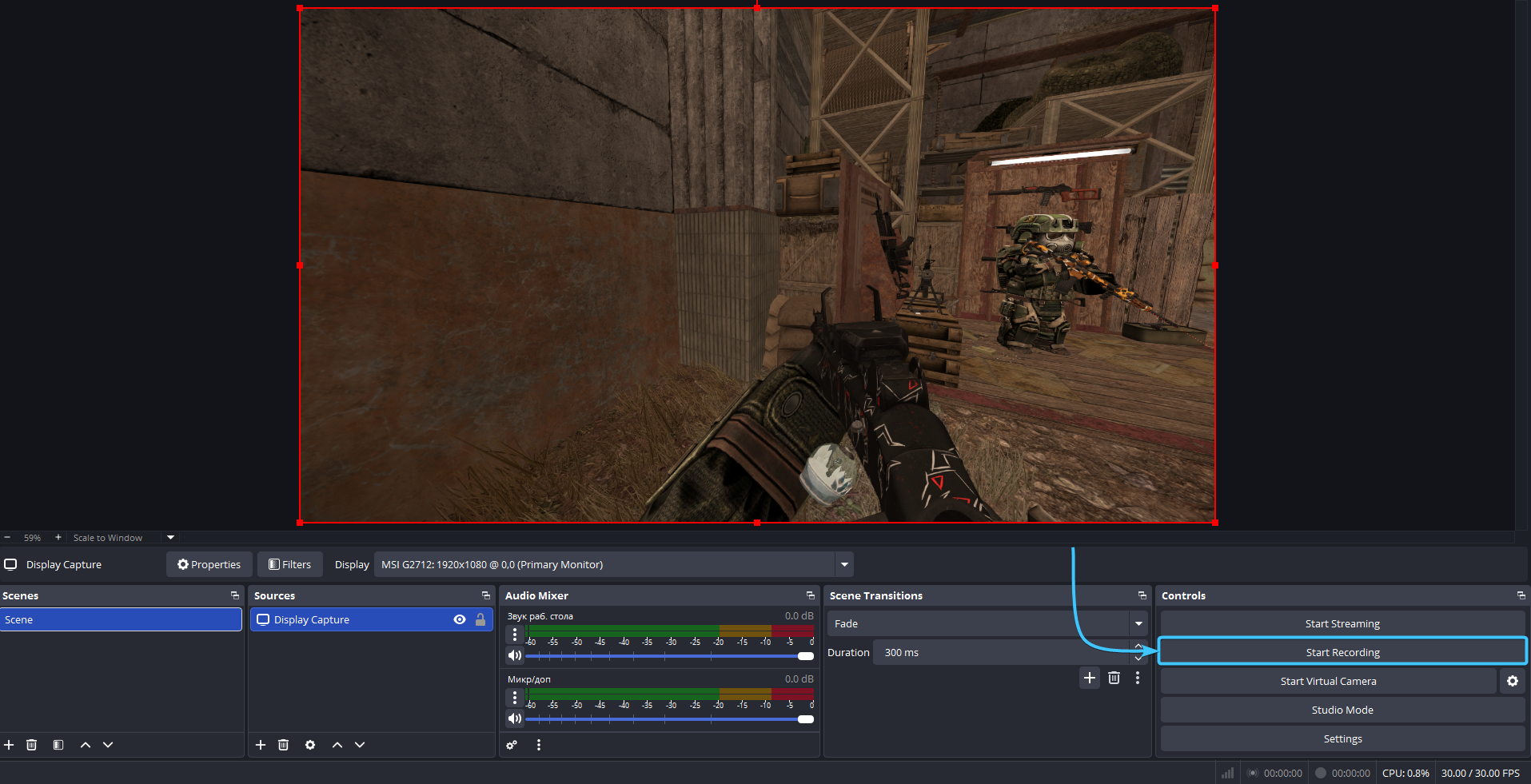
6. Launch the application you want to record. Press the “Start Recording” button to start recording.
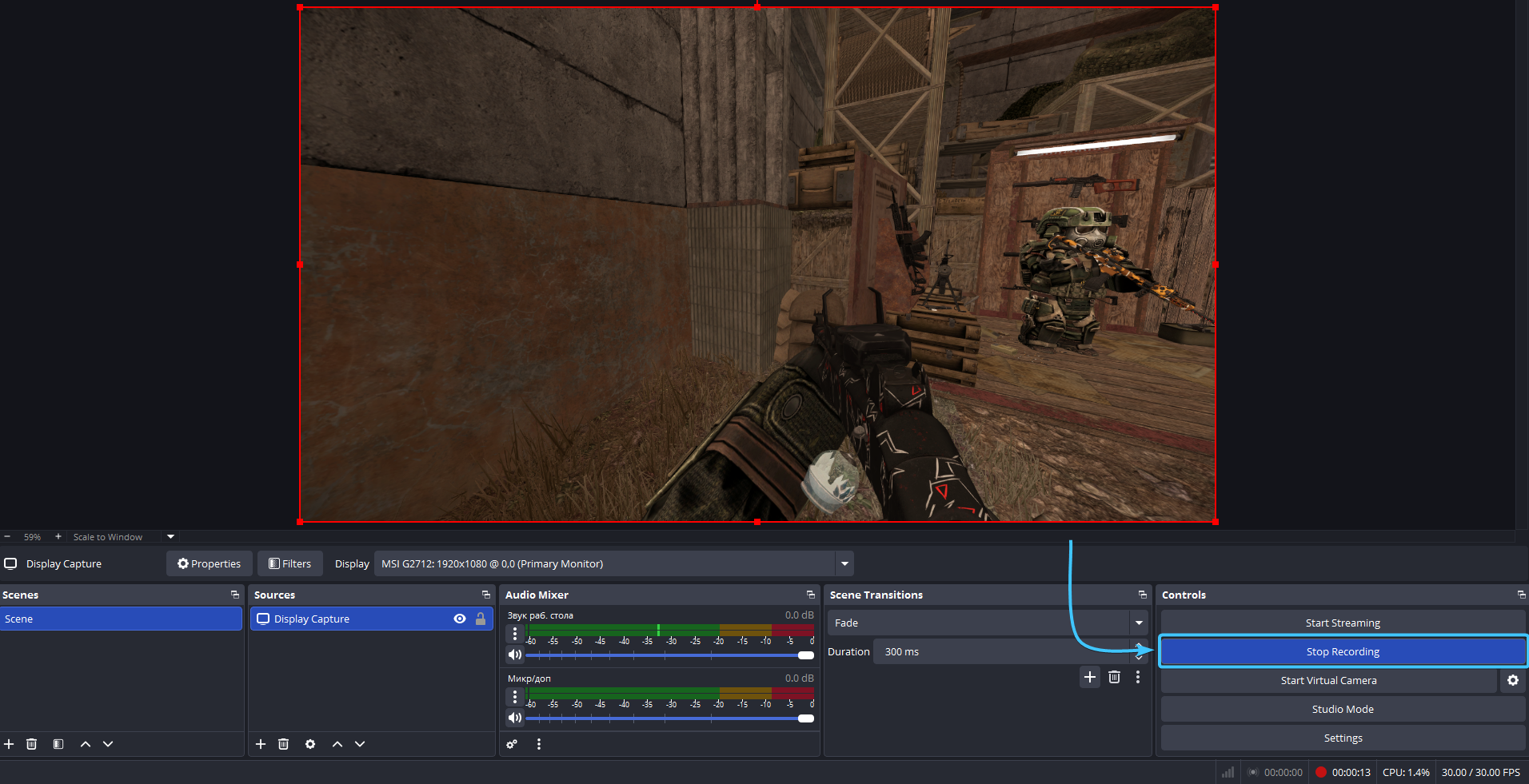
7. Record the necessary fragment. Then press the “Stop recording” button to save.
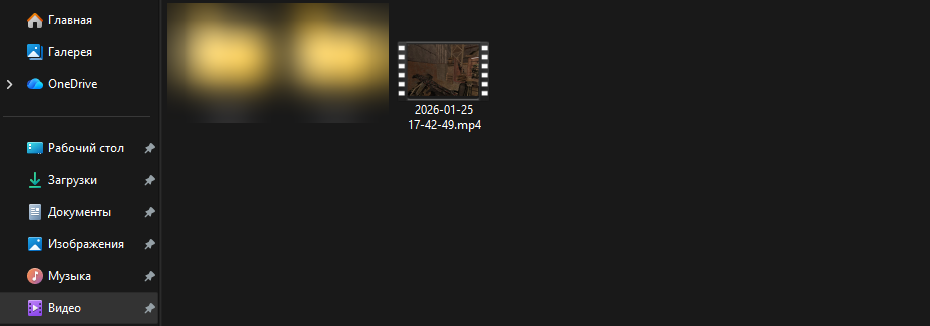
8. The recorded video will be saved in the “Videos” folder, which is located in File Explorer.
Other guides